

Ever get frustrated when your GPU training stalls? It can be annoying when you suspect the technology but soon find out that simple issues like outdated drivers or toolkits cause the hold-up. In this article, we share a step-by-step guide to help you quickly pinpoint and fix these common issues.
We start by updating your operating system, then move on to verifying your NVIDIA driver (the software that lets your GPU, or graphics processing unit, work properly) and confirming that your deep learning framework is set up correctly. With these clear steps, you can boost your performance and get your GPU training running smoothly again.
Comprehensive Troubleshooting Framework for GPU Training Issues
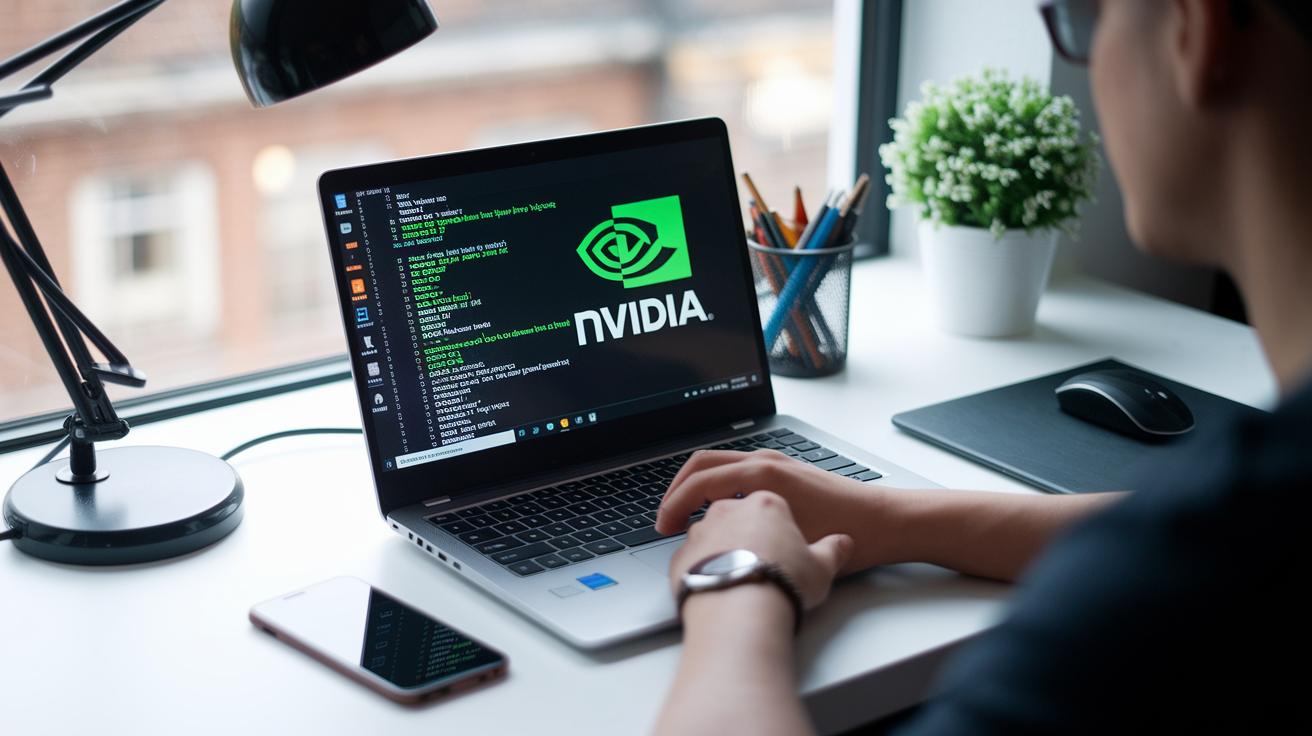
First, update your host operating system. This makes sure you have the latest security patches and performance improvements before installing any new drivers or toolkits. If you use Linux, run the update command (for example, apt update or yum update) and reboot your system.
Next, download the proper NVIDIA driver from the official NVIDIA website for your GPU model and operating system. Remove any old drivers, reboot your system, install the new driver, and then reboot again. These steps help prevent conflicts and version mismatches. You can verify the installation by running the nvidia-smi command, which shows the driver version, CUDA (NVIDIA compute toolkit) compatibility, GPU usage, active processes, and persistence-mode status.
After installing, run nvidia-smi again to confirm your GPU functions correctly. Check that the output reflects the correct memory usage and process assignments. This step quickly highlights any runtime errors. If you see errors, they may indicate an issue with the driver installation.
Keep in mind that some platforms have unique challenges. For instance, POWER9 servers running Red Hat Enterprise Linux 7.6 may experience memory-management problems due to kernel auto-onlining, which can disturb virtualized GPU allocation.
Finally, ensure that your deep learning frameworks, such as TensorFlow or PyTorch, are the GPU-enabled versions. A CPU-only setup can cause execution to stall, which means you lose the benefits of optimized GPU performance.
Driver & CUDA Toolkit Configuration for GPU Training Issues

Make sure your CUDA toolkit setup goes beyond just what nvidia-smi shows. While nvidia-smi confirms your driver version and shows the toolkit path, running nvcc –version checks that the toolkit is fully integrated. For example, you might see:
nvcc –version
Expected output: "Cuda compilation tools, release 11.2, V11.2.152"
Also, ensure that your driver, CUDA toolkit, and deep learning frameworks (such as TensorFlow or PyTorch) are compatible with each other. A mismatch can silently trigger a fallback to CPU use, which reduces GPU training efficiency.
To be sure everything is in order, try running a sample tool like deviceQuery. This basic test confirms that your CUDA toolkit is working correctly, for instance, by returning an output like:
Device Query output: "Found 1 CUDA capable device"
Following these steps will help you verify that your entire GPU software environment is set up correctly.
GPU Memory Allocation and Management in Training Issues

GPU memory errors can slow down your training process. When you see a "CUDA out of memory" message in nvidia-smi or framework logs, it means your GPU lacks enough memory for the job. This often happens because of memory fragmentation or sudden spikes in usage during long training runs.
Run nvidia-smi to check how memory is allocated. For instance, you might see:
| Memory-Usage | Total Memory |
|---|---|
| 10240 MiB | 16384 MiB |
This kind of output shows that memory is being used in large bursts. In production clusters, occasional GPU resets or driver reloads can help clear fragmented memory and restore peak capacity.
Also, be aware of platform-specific issues. For example, on POWER9 servers running Red Hat Enterprise Linux 7.6, the auto-onlining feature in the kernel might cause virtual GPU memory management issues. If you see unusual kernel log messages, investigate further.
Tracking memory fragmentation, peak usage, and any potential leaks in long training cycles is key. We recommend using proven tools and best practices from guides like "GPU Memory Management in Neural Network Training." These steps can boost memory efficiency and help maintain stable training sessions.
Performance Bottleneck Identification in GPU Training Issues

GPU starvation happens when your data-loading pipeline cannot supply batches fast enough, causing your GPUs to run below capacity. For example, if your pipeline uses just one thread, you may see GPU usage stuck at around 40% even during heavy work. This indicates that your data flow is holding back performance.
Network bottlenecks in distributed training can also slow things down. If your RDMA (remote direct memory access) or Infiniband links are misconfigured, GPUs might sit idle while waiting for data from their peers. We suggest running a simple NCCL (NVIDIA Collective Communications Library) benchmark to measure the time it takes for GPUs to talk to each other. This test helps you see if your network is delaying critical communications.
Sometimes the problem comes from environment misconfigurations. Issues like improper batch-size scaling or using a single-threaded data loader when you need parallel processing can limit performance. You can start by running a mini-training loop with the batch size doubled. If you notice improved GPU usage, then the original setup was likely the problem. This simple test can uncover hidden software issues that slow everything down.
To pinpoint the bottleneck, try these profiling steps:
| Step | Description |
|---|---|
| Data Loader Check | See if the data loader is causing delays in your GPU workload. |
| Network Evaluation | Test the bandwidth and latency between GPUs. |
| Configuration Analysis | Examine batch-size and threading settings to uncover any limits. |
Building a balanced AI system means aligning compute, network, and storage elements. When everything is tuned properly, data flows smoothly, GPUs run at full capacity, and your training cycles are streamlined.
Using nvidia-smi for Diagnosing GPU Training Issues
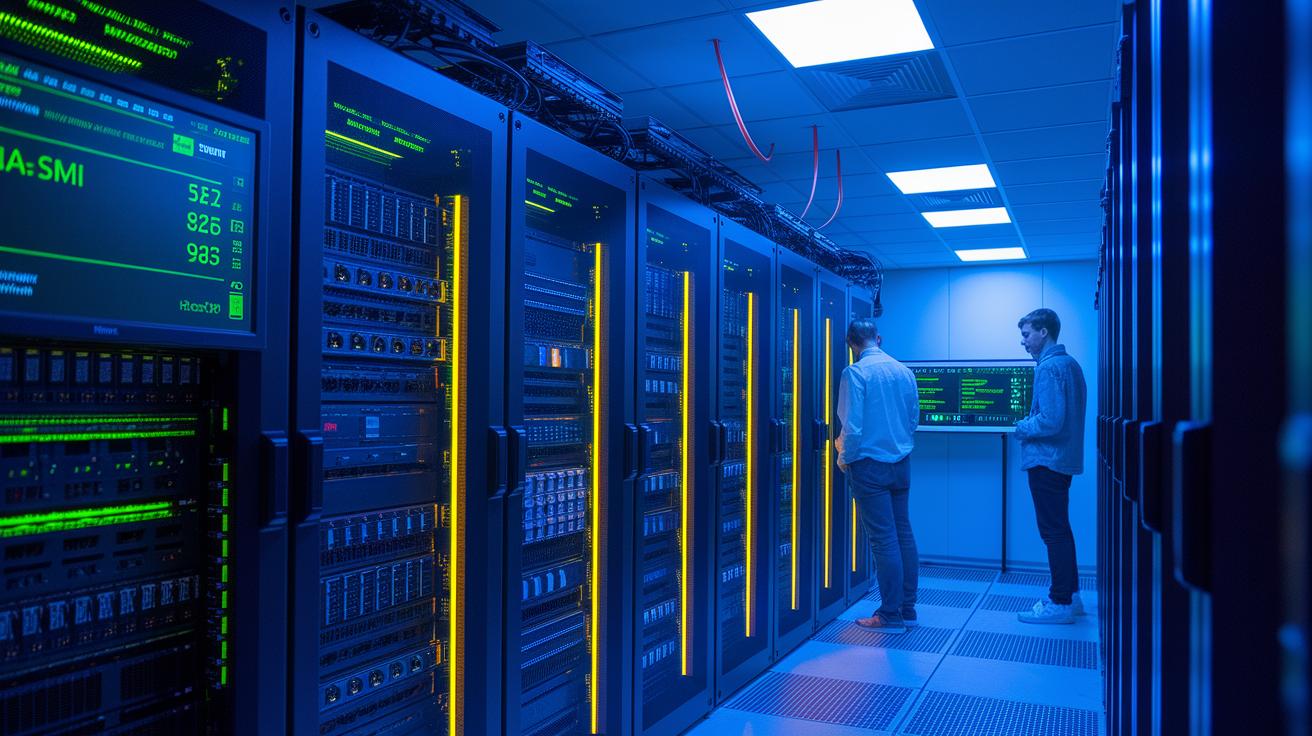
The nvidia-smi tool shows key fields like GPU-Util %, Memory-Usage, Persistence-Mode, and a list of Process-IDs that help you spot problems during training. When you run nvidia-smi, start by checking the GPU-Util % to see if the GPU is busy processing data. For instance, if the GPU-Util % remains unusually low during heavy work, it could mean you are facing resource bottlenecks.
You might also see error codes such as ECC errors (error-checking codes) or TDR resets (timeout detection resets). These codes can signal memory faults or timeouts that cause your training to stop. You can run a command like:
nvidia-smi –query-compute=error_counters,utilization –format=csv
This command creates a CSV list of error counters and utilization trends to help you analyze issues over time.
If faults are reported by nvidia-smi, check your system logs with the dmesg command or review the /var/log/messages file for NVRM kernel-module entries. This combined approach helps you pinpoint unexpected problems in GPU execution and quickly address any errors interrupting your training.
Thermal & Hardware Stability Checks for GPU Training Issues
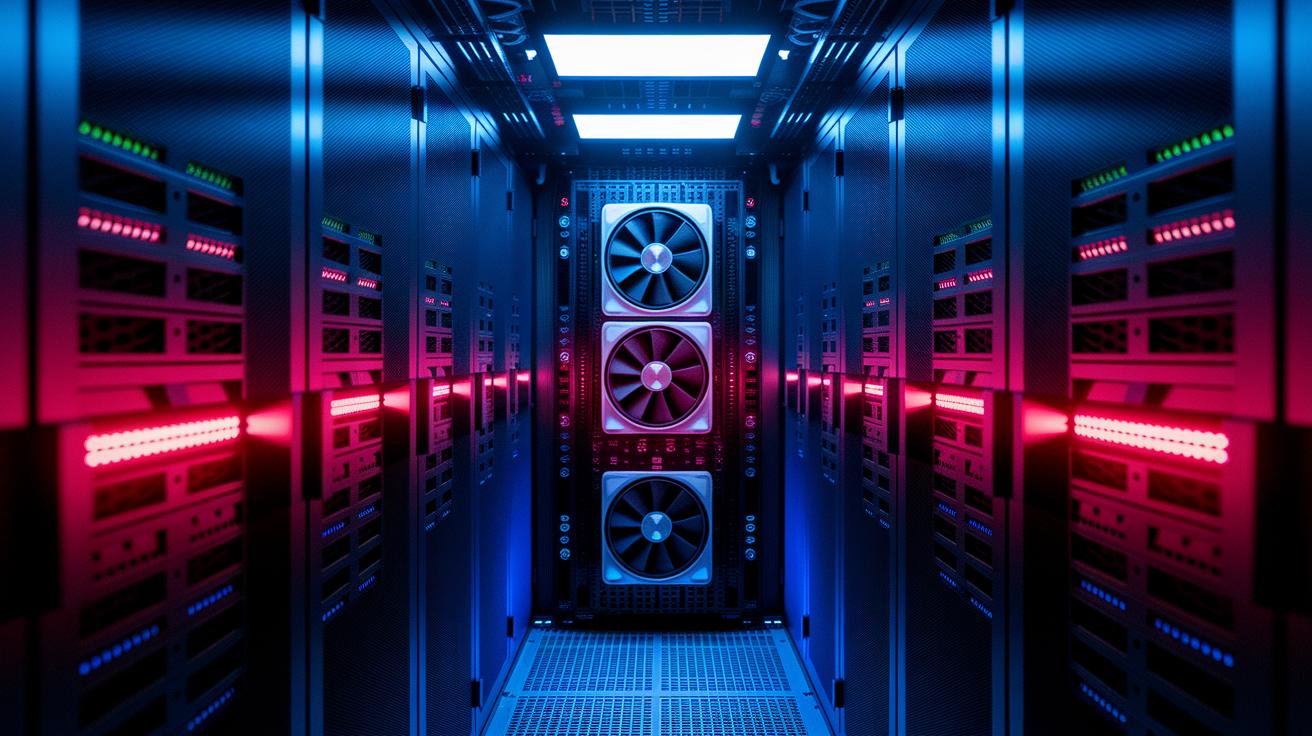
Overheating can slow down your GPU training work. When you see a sudden drop in GPU clocks, a spike in fan speeds, or high temperature numbers with the command nvidia-smi –query-thermal, it means your GPU is working too hard to keep cool. For instance, you might see: "Clock Speed: 1200 MHz → 900 MHz due to thermal throttling," which shows the GPU is lowering its speed to reduce heat.
It is a good idea to check your Linux kernel logs next. Use commands like dmesg or open the file /var/log/messages. These logs can show NVRM WARN or ERR messages, which point to power or heat issues with the GPU.
Also, get hands-on with your hardware. Make sure the GPU is firmly seated in its PCI-E slot. Look over all power cable connectors to check they are secure and not damaged. Verify there is enough airflow around the GPU and that the heatsink is clear of dust. You might see a note like: "Ensure fans are unobstructed and heatsink fins are clear to maintain optimal cooling."
Remember, sustained overheating will eventually degrade the GPU silicon over time. Regular cleaning and periodic airflow checks will help extend your GPU's life and keep it performing well during long training sessions.
- Check GPU seating in the PCI-E slot
- Inspect power cable connectors
- Verify proper airflow and clean heatsink
Ensuring Framework Compatibility & GPU Training Precision

Install GPU-enabled wheels for TensorFlow or PyTorch so your training uses GPU acceleration. If you accidentally install a CPU-only version, your training will run on the CPU and slow things down. Always verify that the version you have supports CUDA (NVIDIA compute toolkit) integration. An outdated framework paired with a new CUDA toolkit can cause symbol-lookup errors at runtime and stop your training unexpectedly.
You might see an error like "symbol not found" when incompatible builds do not work well together. To fix this, keep your framework up to date, use official installation channels, and ensure your version numbers match your CUDA toolkit and drivers.
We also recommend trying mixed-precision training to improve stability and increase throughput for large-model tasks. Mixed-precision training combines 16-bit and 32-bit computations to reduce memory usage while maintaining accurate results.
For instance, you can initialize a mixed-precision optimizer by setting:
opt = tf.keras.mixed_precision.experimental.LossScaleOptimizer(base_optimizer)
This change can make training smoother and help you utilize GPU resources more efficiently.
Regularly review your framework and toolkit setup to avoid misconfigurations. This proactive step keeps all components working together seamlessly, ensuring your deep learning projects run at peak performance.
Persistence Daemon & Multi-Device Coordination for GPU Training Issues

Using the NVIDIA Persistence Daemon (nvidia-persistenced) helps keep your GPUs ready at all times. This reduces the overhead from switching contexts. It also means that memory setups stay in place between training sessions, which speeds up your launch times. For instance, running "nvidia-persistenced enabled" before you start your training can boost performance.
When working with multiple devices, problems can come up if environment variables are not set correctly. Common issues are missing NCCL (NVIDIA Collective Communications Library) environment variables and mismatched CUDA_VISIBLE_DEVICES (a setting that specifies which GPUs to use) entries. These errors might cause some GPUs to sit idle while waiting for gradient calculations.
To fix these issues, try these steps:
- Check that the persistence daemon is running.
- Make sure all NCCL environment variables are set.
- Verify that CUDA_VISIBLE_DEVICES lists every GPU you have.
It also helps to run NCCL tests to check the speed and delay between GPUs. For example, running a simple nccl-tests command can show if there are any communication delays. This method refines your configuration so that your multi-device setup works smoothly and uses all available GPU resources during training.
Final Words
In the action, we covered everything from upgrading your OS to verifying drivers and toolkits.
We explored memory checks, thermal alerts, and ensuring framework compatibility.
We also dove into multi-device coordination and persistence mode to keep your system stable.
Every step helps you tackle common hurdles in troubleshooting gpu training issues.
By following this roadmap, you can build a smoother, more reliable training workflow that speeds up production.
FAQ
How do I troubleshoot GPU training issues, such as those discussed on Reddit?
Troubleshooting GPU training issues includes verifying OS updates, confirming proper driver installation, using diagnostic commands like nvidia-smi to check status, and reviewing community advice on platforms like Reddit.
How do I fix NVIDIA GPU driver issues and related driver problems?
Fixing NVIDIA GPU driver issues begins with verifying the correct driver from the official site, uninstalling old versions, rebooting, and using nvidia-smi to confirm smooth driver and CUDA compatibility.
What are common GPU problem symptoms and malfunction signs?
Common GPU issues include error messages, overheating, driver crashes, and artifacting. Diagnostic tools like nvidia-smi and system logs help confirm these symptoms and signal potential hardware faults.
How can I troubleshoot GPU hardware issues effectively?
Troubleshooting GPU hardware issues involves inspecting physical seating, power connections, airflow, and thermal conditions while reviewing system logs for errors related to overheating or power faults.
Can I use 70% isopropyl alcohol to clean my GPU?
Using 70% isopropyl alcohol is not recommended because it leaves moisture residue; opting for 90% or higher is preferred to clean GPU components without causing damage.
How do I know if my GPU is malfunctioning?
Determining GPU malfunctioning involves checking error codes, running diagnostics like nvidia-smi, and monitoring for irregular performance or display issues that indicate underlying hardware problems.

