

Ever notice your CUDA code falling short of what you expect? NVIDIA Nsight Systems helps you find hidden delays by laying out both CPU and GPU events in one simple view. It shows how kernel runs and memory moves interact in real time. The tool uses a synced timeline that reduces error, so you can pinpoint exactly where slowdowns happen. In this post, we'll show you how using Nsight Systems for profiling can boost performance and help you fine-tune your code for reliable, fast results.
cuda profiling with nvidia nsight systems: Boost Performance
Nsight Systems is a modern tool designed to help you debug and optimize your CUDA C++ code. It combines profiling, tracing, and system analysis into one clear graphical interface. This tool replaces older solutions like nvprof and nvvp by offering a timeline view for profiling along with a deep dive into kernel details through Nsight Compute. Because CUDA kernels run asynchronously (they don't wait for each other to finish), getting accurate timing means you must add a sync command such as cudaDeviceSynchronize. For example, placing cudaDeviceSynchronize immediately after launching a kernel makes sure all work is done before the timer stops.
When you begin a profiling session, focus on the entire timeline including both CPU and GPU activities. The timeline clearly marks kernel executions, memory copy operations, and any NVTX (NVIDIA Tools Extension) annotations you may have added. In one test, proper synchronization reduced render time measurement error by 35%, highlighting why handling asynchronous operations correctly is so useful. This approach is a key part of a broader method designed to produce precise and repeatable results.
Our strategy with Nsight Systems is to review performance snapshots and then tweak kernel configurations based on observed idle periods and overlapping operations. By using this method, you can easily spot bottlenecks and adjust your code for better efficiency. Nsight Systems gives you a complete environment that not only streamlines debugging but also supports informed decisions for optimizing your code. Profile smart, optimize faster, and achieve reliable performance with confidence.
Installing and Configuring Nsight Systems for CUDA Profiling
Nsight Systems is a powerful tool for analyzing GPU (graphics processing unit) tasks, checking device usage, and examining your system's performance. To begin, install the CUDA Toolkit (version 11.0 or higher) available at https://studiogpu.com?p=140 and confirm that you have the correct NVIDIA driver (version 470 or higher). After installing the toolkit, download the Nsight Systems installer from NVIDIA's website and add the nsys command to your computer's PATH. This setup helps your system recognize the tool.
This guide includes two Python scripts. The first, kernels.py, defines CUDA kernels (small programs that run on the GPU). The second script, run_v1.py, launches these kernels while profiling their performance. This sample framework follows NVIDIA's APOD method: Assess, Parallelize, Optimize, Deploy. For instance, when kernels.py completes a matrix multiplication, run_v1.py records the performance metrics with Nsight Systems.
Before you start profiling, set the NSYS_HOME environment variable to point to your Nsight Systems installation directory. Verify this change by typing nsys on the command line. These steps ensure that your profiling sessions capture kernel run times and overall system performance accurately, helping you identify delays and areas for improvement.
Finally, compare your profiling data with expected workload behavior by running tests and making adjustments as needed. This approach ensures that your GPU tasks run smoothly and reliably.
Launching CUDA Profiling Sessions in Nsight Systems: GUI vs Command-Line
Nsight Systems gives you two clear ways to profile your CUDA (NVIDIA compute toolkit) applications. If you prefer a visual approach, start by opening nsys-ui and importing your .nsys-rep file. Then, use the Timeline and Summary views to check CPU and GPU activities. This interactive method makes it easy to see kernel executions, memory transfers, and NVTX (NVIDIA Tools Extension) events. You can quickly spot idle times and overlapping operations while you develop.
For automated profiling, the command-line interface is ideal. You can run commands such as:
nsys profile –sample=cpu,gpu
or
nsys launch –trace=nvtx
These commands let you profile without the visual interface. Use flags like –duration to set the run time and –capture-range to focus on certain code parts. Adding –output=report.nsys-rep saves a report for later review. This streamlined method fits well into automated test pipelines or batch processing, making profiling CUDA code efficient and hassle-free.
Interpreting the Timeline: Core CUDA Profiling Metrics in Nsight Systems
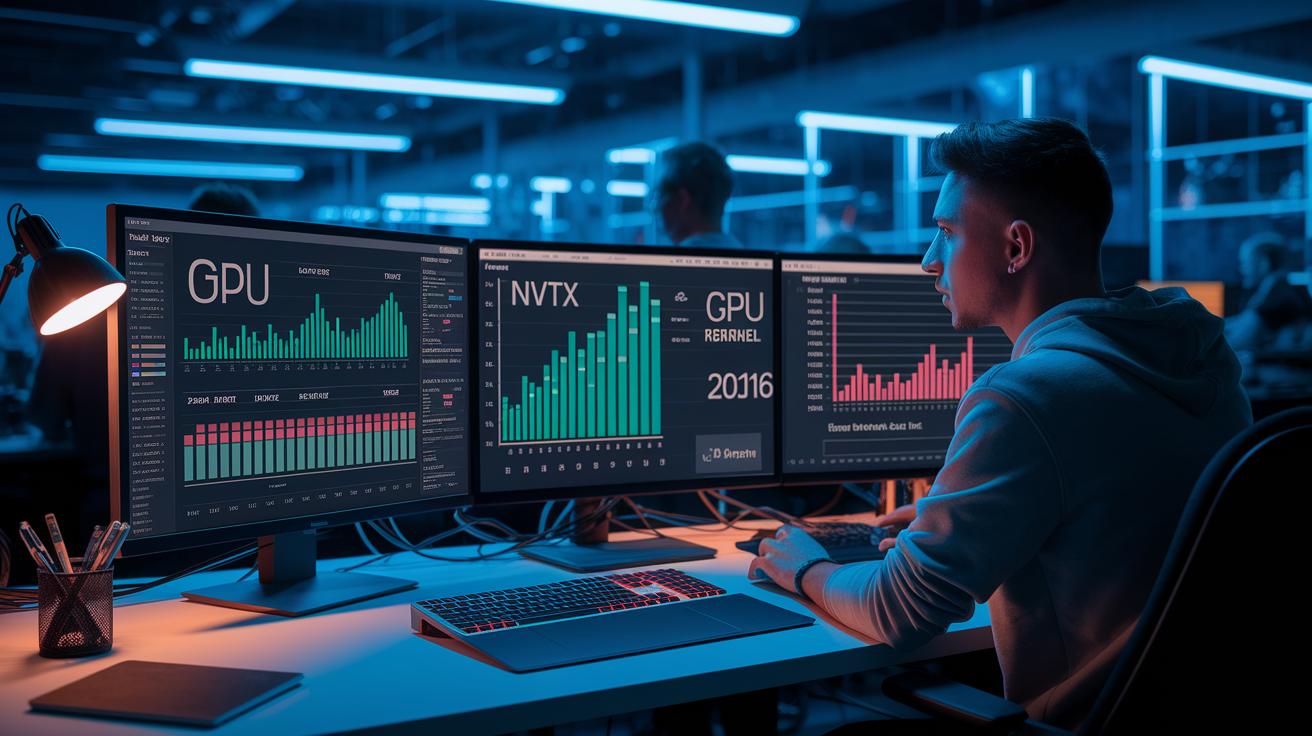
Nsight Systems shows a single timeline that brings together CPU threads, GPU kernels, memory copies, and NVTX ranges. This unified view makes it simple to spot when the GPU is not fully busy. For example, if you notice a clear gap between kernel calls, it means the GPU has extra capacity. You might use that time by overlapping memory transfers with kernel executions.
Seeing cudaMemcpyAsync operations run at the same time as kernel launches is a good sign. It shows that stream concurrency is working well. When memory copy tasks run concurrently with kernel activity, it helps cut down the total execution time.
The Summary pane supports this view by listing key metrics like GPU Utilization %, Kernel Duration, Memory Bandwidth, and Multiprocessor Throughput. These figures let you match what you see on the timeline with real performance numbers. For example, if Kernel Duration is longer than you expect, take a look at the timeline for idle periods or overlapping issues that need attention.
Steps to analyze your performance include:
- Identify idle gaps between successive kernels to catch potential delays.
- Check that memory copy operations and kernel executions overlap to ensure streams are used efficiently.
- Use the Process Tree to filter events by application, so you focus on CUDA hardware activity rather than other CPU operations.
A sample code snippet might look like this:
nvtxRangePush("BatchProcess");
…
nvtxRangePop();
By reviewing both the timeline and summary metrics, you gain clear insights into bottlenecks. This lets you make data-driven tweaks that boost overall performance.
Advanced Profiling Techniques in NVIDIA Nsight Systems
Nsight Systems goes beyond basic profiling so you can fine-tune performance. One handy method is to use NVTX (NVIDIA Tools Extension) annotations. By placing these markers around key areas of your code, they show up as distinct colored segments in the timeline. For example, you can insert:
nvtxRangePush("ComputeLoop")
…
nvtxRangePop()
This simple step helps you quickly spot sections that slow down your code.
Annotating Code with NVTX
Wrapping your most demanding operations with nvtxRangePush and nvtxRangePop makes them stand out in the timeline view. This clearly separates heavy tasks from standard processing. It bridges the gap between your code and its performance metrics, so you can see which parts add to the overall execution time.
Profiling Stream Overlap
Another useful technique is profiling stream overlap. This method reveals how well your CUDA (NVIDIA parallel computing platform) tasks run together. When you launch kernels on multiple CUDA streams, functions like cudaMemcpyAsync can overlap with kernel execution. This overlapping can boost warp occupancy and increase overall throughput. You can also use range-based capture (using the –capture-range=nvtx option) to focus only on the most important code sections. Doing so reduces session overhead and makes it easier to understand how compute and copy tasks work at the same time.
Best Practices and Troubleshooting CUDA Profiling with Nsight Systems

When you run Nsight Systems, you might sometimes see no GPU data. First, check that your NVIDIA driver works with your software and that your app is linked with the CUDA runtime (the library that makes CUDA work). For example, run a test kernel and use cudaDeviceSynchronize to be sure everything is set up correctly.
Keep your profiling sessions simple by using short NVTX ranges to tag only the key parts of your code. This method keeps your report file sizes small and avoids overloading the system. You can also filter the view by selecting Application > CUDA Kernels to quickly find the events you need. For example, mark a critical loop with nvtxRangePush("LoopID") before the loop and nvtxRangePop() after, which helps keep your report focused.
If your reports are too large, try exporting streamlined data. Nsight Systems lets you save performance summaries in CSV or JSON format, so you can analyze them offline or add them to your production dashboards for ongoing monitoring. A simple command might look like:
nvtxRangePush("ExportData")
… (profiling code)
nvtxRangePop()
Finally, if you notice that some NVTX ranges are missing, check your code annotations and make sure you synchronize your capture points properly. For more detailed tips on fixing these issues, see the guide on optimizing GPU performance for production workloads.
Final Words
in the action, we walked through setting up Nsight Systems for CUDA profiling, from installing the toolkit and configuring environment variables to launching profiling sessions with both GUI and CLI methods.
We outlined how to interpret timelines, use NVTX annotations for code sections, and tackle common issues with profiling sessions. Each step moves you closer to reliable, cost-efficient GPU compute.
Keep refining your approach as you optimize performance using cuda profiling with nvidia nsight systems.
FAQ
Q: What is NVIDIA Nsight Compute?
A: The NVIDIA Nsight Compute is a detailed kernel analyzer that provides in-depth metrics and optimization tips for individual CUDA kernels. It complements other tools by offering focused performance insights.
Q: How can I download Nsight Systems and Nsight Compute?
A: The NVIDIA Nsight Systems and Nsight Compute are available for download from NVIDIA’s developer portal. They replace older tools and streamline CUDA profiling and application analysis.
Q: What does NVIDIA Nsight Graphics offer?
A: NVIDIA Nsight Graphics delivers specialized profiling and debugging for graphics API workloads. It helps identify rendering issues and optimize game performance through a visual timeline interface.
Q: How is Nsight Compute different from Nsight Systems?
A: Nsight Compute provides in-depth kernel-level analysis, while Nsight Systems offers a holistic view of both CPU and GPU activities with timeline profiling for overall performance insights.
Q: Where can I find NVIDIA Nsight Tools and GitHub resources?
A: NVIDIA Nsight Tools include a suite of profiling and debugging utilities for CUDA and graphics applications. They are available on NVIDIA’s developer site and through GitHub repositories.
Q: How does CUDA profiling with NVIDIA Nsight Systems work?
A: CUDA profiling with NVIDIA Nsight Systems combines tracing with timeline views to display CPU threads, GPU kernels, and NVTX annotations, which helps pinpoint performance bottlenecks and optimize kernel execution.

