

Have you ever wondered if your GPU (graphics processing unit) can keep up with the heavy demands of rendering and AI work? Benchmark software is designed to test your GPU to its limits, showing both its hidden strengths and areas for improvement.
In this article, we highlight popular tools such as FurMark, Unigine, and 3DMark. Each tool runs real-world tests and provides clear numbers that help you decide if your hardware meets your creative and technical needs.
Discover how using the right benchmark software can unlock better performance for your rendering and AI projects.
Leading GPU Benchmark Tools for Rendering and AI Workloads

FurMark is a proven tool for testing graphics cards and checking render performance. It is a free test built on OpenGL, and it has been the preferred choice for five years in a row. Its simple interface helps catch any issues early, so you know your GPU (graphics processing unit) can handle heavy work. Think of it as a tool that pushes your GPU to its limits, making sure even the toughest tasks run smoothly.
Unigine has more than 10 years of hands-on testing and stability checks behind it. It lets you compare older and newer GPUs side by side, which is useful for designers and AI teams alike. The tool tests real-world rendering efficiency, so studios can quickly see if an upgrade might speed up their frame rendering.
3DMark combines several tests like Tomb Raider, Fire Strike, and Time Spy. The Time Spy test uses DirectX multithreading and asynchronous computing (running several tasks at once) to give clear insights into neural acceleration and detailed graphics rendering. It is a solid pick for anyone who needs a deep review of GPU performance, both for fast frame rates and steady AI testing.
For enterprise needs, tools like SiliconMark™, MLPerf, and InferenceMAX focus on processing accuracy, memory speed, and overall compute power. They cover AI and machine learning tasks, helping data centers and creative teams decide if new hardware will improve both rendering and AI performance.
Key GPU Benchmark Metrics: Rendering Efficiency vs AI Inference Evaluation
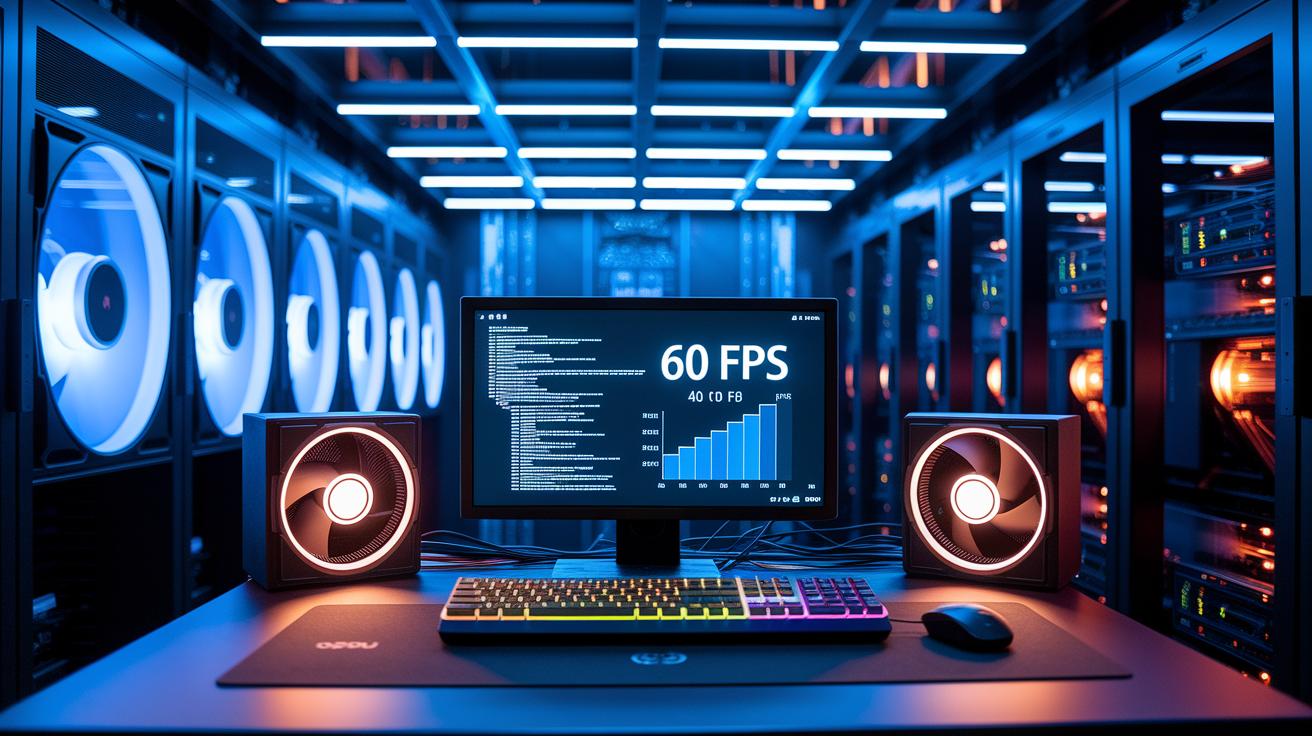
GPU benchmarks help us measure how well a graphics processing unit works for both visual tasks and compute jobs. When we assess rendering efficiency, we look at frame rates (frames per second), comparing a steady 60 FPS to rates that can vary between 40 and 80 FPS. We also evaluate shader performance (small programs that handle graphics details) and overall image quality to see how well a system processes complex 3D scenes. Some tests use synthetic benchmarks that repeatedly run the same scenario, while others use real-world tasks. For example, a GPU benchmark might reveal signs of thermal or power limits when a card nears its maximum load.
In contrast, AI inference evaluation focuses on how well a GPU handles neural network tasks using metrics such as FLOPS (floating point operations per second), memory bandwidth (speed of data transfer), latency (delay in processing), and throughput (amount of work done over time). These tests show how quickly a GPU can perform complex calculations needed for deep learning, especially when several tasks run at once. Stress tests push the GPU to its limits, helping us understand its performance under full load. By comparing synthetic tests with real-world AI tasks, we obtain a complete view of a system's capabilities. Each metric plays an important role in adjusting systems for both creative rendering and advanced AI processing.
Both rendering and AI tests require a controlled setting. We make sure that temperature, driver versions, and power settings are consistent for each run, which gives us clear and repeatable measurements. Using standard testing tools helps us identify performance bottlenecks and optimize workflows effectively.
Installing and Configuring GPU Benchmark Software for Rendering and AI

First, download the newest versions of FurMark, Unigine, 3DMark, and AI benchmark tools such as MLPerf or InferenceMAX. After installing them, update your GPU (graphics processing unit) drivers and verify that your CUDA toolkit (NVIDIA compute toolkit) is set up correctly. For example, when the FurMark installer asks you to choose between default and custom stress setups, pick the one that fits your testing needs.
Then, check that your driver version matches the CUDA toolkit release notes. This step makes sure your system meets all the requirements for accurate testing. Run a simple command like "nvidia-smi" to confirm your hardware and driver are working together.
Next, establish your baseline testing conditions by adjusting the resolution, choosing the preferred APIs, and setting power options. If you work with multiple GPUs or custom accelerators, customize the test modules to mimic your production environment. At this point, use detailed profiling methods to record system throughput and pipeline optimization metrics.
Lastly, create a repeatable testing environment. Compare synthetic stress tests with real-world workload simulations and always use the same settings. This consistent setup ensures you evaluate performance accurately.
Comparative Performance Table: GPU Benchmark Software for Rendering and AI

| Tool | Primary Focus | Key Metrics | Cost/License | Best Use Case |
|---|---|---|---|---|
| FurMark | Stress and stability | Thermal throttling, power draw, temperature | Free | Finding heat and load issues in gaming and creative rendering |
| Unigine | Real-scene rendering | Frame rates, shader performance, DirectX/OpenGL measures | Free | Comparing older GPUs to current models using real-world scenes |
| 3DMark | Gaming/render hybrid | Multithreading, asynchronous compute, frame smoothness | Paid tiers | High-end gaming simulations and detailed rendering tasks |
| MLPerf | AI throughput | Floating point operations per second (FLOPS), memory bandwidth, latency | Open benchmark suite | Testing machine learning tasks on enterprise GPUs |
| InferenceMAX | Model simulation latency | Inference speed, compute throughput, scalability | Open benchmark suite | Checking neural network acceleration and overall AI inference |
This comparison table gives you a side-by-side view of popular GPU benchmark tools. Each tool centers on a specific area. For example, FurMark stresses the hardware to reveal heat-related issues, while Unigine focuses on rendering real-life scenes.
The key metrics help you understand what each tool measures. Take 3DMark: it uses DirectX 12 with multithreading and asynchronous compute to offer insights that matter for both gaming and detailed rendering tasks. In contrast, MLPerf and InferenceMAX break down numbers important for machine learning, such as FLOPS (floating point operations per second), memory bandwidth, and inference speed.
By lining up cost, licensing, and performance details, you can quickly find the tool that works best for your needs. Whether your focus is on chip performance or running stress tests on GPUs, this table offers a clear, practical reference for making the right choice.
User Reviews and Case Studies of GPU Benchmark Software for Rendering and AI

Experts in the industry regularly share feedback on GPU benchmark tools. Their real-world experiences show that these tests give clear insights into GPU performance. For instance, many users find that FurMark detects overclock issues reliably. One user said, "I ran FurMark and immediately noticed temperature spikes that pointed to possible overheating." This kind of practical information is crucial for improving system reliability.
Unigine is also favored when comparing legacy GPUs with newer models. A production studio once used Unigine to test older hardware against the latest cards. Their results clearly showed performance gains, helping teams see the benefits of upgrading their graphics cards for smoother rendering and faster workflows.
Another well-known tool is 3DMark. Its Time Spy test provides performance checks for real-world gaming and rendering. Engineers appreciate how Time Spy measures multithreading and asynchronous computing. One engineer mentioned, "Time Spy impressed us with its detailed metrics, letting us fine-tune our render processes."
Enterprise benchmarks also earn strong praise. Silicon Data’s QuickMark™ combines market data and historical trends, which helps guide smart procurement decisions. In addition, MLPerf results from leading AI labs have reported noticeable throughput gains on A100 and H100 series GPUs. These findings underline the benchmarks' value for both professional visualization and neural compute tasks.
In short, user reviews and case studies show that choosing the right benchmark is key to managing a balanced, high-performance rendering and AI workload on diverse systems.
Best Practices for GPU Benchmark Testing in Rendering and AI
To get accurate GPU benchmark results, we recommend running both synthetic tests (designed to mimic real workloads) and production-style tests. Follow our installation and configuration instructions to keep driver and API versions consistent, and make sure power and thermal settings remain at baseline levels. We also suggest recording details like power efficiency and memory usage, not just frame rates.
Enterprise users often see benefits when testing on multi-GPU clusters and in hybrid setups that include custom accelerators. These methods help you spot bottlenecks in your processing pipeline and improve real-world performance.
Use this checklist for a straightforward testing approach:
- Keep your driver and API versions consistent
- Run both synthetic benchmarks and production tasks
- Track extra metrics, including power efficiency, memory usage, and throughput
- Configure tests for multi-GPU clusters and specialized hardware
This clear process cuts out extra steps while delivering reliable and repeatable benchmark results for both rendering and AI workloads.
Final Words
In the action, we dove into top GPU benchmark tools that help gauge rendering speed and AI inference performance. We reviewed setup steps, metrics, and user insights for tools such as FurMark, Unigine, 3DMark, MLPerf, and InferenceMAX.
We also laid out best practices for consistent, repeatable tests. This guide helps you choose and tune your setups with gpu benchmark software for rendering and ai to get reliable, cost-effective results. Enjoy faster iterations and better control over your production workflows.
FAQ
Q: What GPU benchmark software for rendering and AI can I download for free?
A: The free GPU benchmark software for rendering and AI include tools like FurMark, Unigine, and basic 3DMark versions that let you check thermal stability, frame rate performance, and early AI processing capabilities without charge.
Q: What does 3DMark benchmark test measure in GPU performance?
A: The 3DMark benchmark test measures GPU performance by assessing gaming and rendering workloads using tests such as Tomb Raider, Fire Strike, and Time Spy that stress DirectX multithreading and asynchronous computing capabilities.
Q: How does Heaven Benchmark help evaluate GPU performance?
A: The Heaven Benchmark helps evaluate GPU performance by running detailed, real-world scenarios that stress test graphics processing, thermal limits, and overall system stability using OpenGL-based render tasks.
Q: What is FurMark and why is it used for GPU stress testing?
A: The FurMark benchmarking tool is a free OpenGL-based stress test that detects GPU instabilities under maximum load, making it a popular choice for identifying thermal throttling and performance issues.
Q: How does PCMark contribute to overall system performance evaluation for GPU benchmarks?
A: The PCMark benchmark evaluates overall system performance including GPU effectiveness by simulating real-world tasks, helping you understand how well your graphics card handles mixed workloads beyond just gaming or rendering.
Q: What is Superposition Benchmark used for in GPU testing?
A: The Superposition Benchmark is used for GPU testing by measuring performance under heavy visual compute tasks that mirror high-fidelity rendering and AI inference, providing detailed insights into graphics and compute efficiency.
Q: How does Novabench assist in GPU benchmarking?
A: The Novabench tool assists in GPU benchmarking by offering a quick evaluation of 3D scene rendering and overall card performance, helping users compare and review graphics processing power across different systems.

