

Have you ever felt that slow rendering is stifling your creative flow? Imagine a setup that trims wait times by using powerful graphics processing units (GPUs) to deliver real-time visuals. In this approach, your detailed 2D designs turn into immersive 3D scenes in just a few seconds. Our blog explains how Lenovo P1 Gen 4 workstations, paired with NVIDIA RTX A5000 cards and smart hardware acceleration, revamp rendering workflows. With immediate feedback, you can make faster, more precise creative choices, leaving behind the old, slower CPU methods.
Achieving Real-Time Visualization Through GPU Workflow Integration
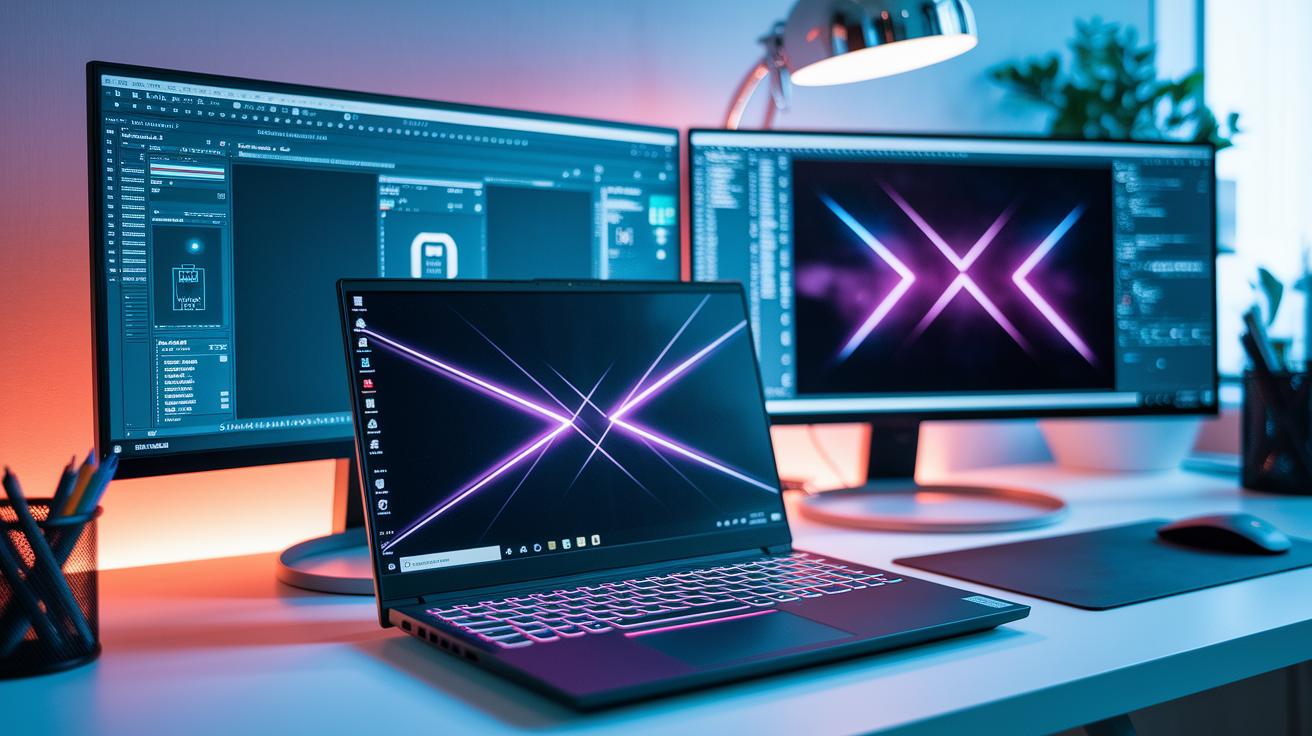
We speed up our rendering pipeline by equipping Lenovo P1 Gen 4 mobile workstations with NVIDIA RTX A5000 cards. This setup connects 2D tools like Adobe Illustrator with 3D apps such as KeyShot, so you can instantly switch between detailed vector work and photo-real previews. For example, a bike model with 26.5 million triangles and 64,000 NURBS renders in just 10 to 15 seconds, giving you rapid visual feedback for informed creative decisions.
We replace traditional CPU-based methods with a hardware acceleration module that handles heavy tasks. This seamless switch between applications creates a faster rendering process that meets modern product development needs. Designers can quickly adjust models and textures based on immediate feedback, ensuring every change is accurate and aligned with their vision.
By using NVIDIA RTX PRO 6000 cards on the Blackwell platform, we overcome common memory issues faced during local generative AI and real-time scene development. This approach supports a wide range of creative tasks while reducing delays and boosting productivity.
Core GPU Workflow Components for Interactive Real-Time Visualization
GPU acceleration excels by handling thousands of tasks concurrently. By shifting heavy computations to the GPU, we can avoid using large CPU clusters, saving money and boosting efficiency. Newer GPUs from NVIDIA and AMD, combined with PCIe 4.0 (a fast data transfer standard) or higher, enable swift data movement between the CPU and GPU. This quick exchange supports tasks like synchronizing graphics subsystems, managing scene composition, and distributing shader work (small programs that control visual effects). Developers who get hands-on training in CUDA (NVIDIA compute toolkit) and OpenCL make the most of these capabilities. Industries such as gaming, AI/machine learning, healthcare imaging, financial analytics, and scientific research see faster processing without bottlenecks.
The workflow includes five key elements that work together seamlessly:
- GPU hardware that handles massive parallel processing
- Drivers and API layers ensuring reliable communication
- A rendering engine that produces smooth visual output
- A high-speed data bus that minimizes transfer delays
- A shader pipeline optimized for spatial matrix efficiency
Each part is vital. The GPU hardware provides raw power, while drivers and APIs ensure commands are executed precisely. The rendering engine transforms code into visuals, the fast data bus cuts down any lag, and the shader pipeline ties everything together, supporting rapid and interactive visual modifications that meet today’s design and development needs.
Step-by-Step GPU Integration Workflow for Real-Time Visualization

We start with small pilot tests to check for performance gains before moving to full deployment. This approach helps you spot potential issues early and fine-tune your stream processing for dynamic image production. At this stage, matching your hardware with your visual output goals is essential. Once you confirm a baseline boost in performance, focus on selecting high-performance GPUs, such as NVIDIA RTX Series or AMD Radeon Pro, that suit your project workload. Updating to the latest drivers and APIs (CUDA, DirectX 12, Vulkan) keeps your system stable while providing current features. This careful, step-by-step process sets a clear plan for parallel work and helps identify any integration hurdles along the way.
Follow these six steps to integrate GPU rendering into your current workflows:
- Run pilot tests to verify performance improvements and uncover issues early.
- Choose high-performance GPUs that fit your project’s workload requirements.
- Update to the latest drivers and APIs to ensure optimal stability and access to new features.
- Integrate GPU rendering modules into existing engines such as Unreal, Unity, or custom OpenGL/Vulkan pipelines.
- Use profiling tools like Nsight and GPUView to confirm that each process meets your expected visual output standards.
- Tackle any identified bottlenecks to continuously improve the dynamic image generation process.
Once you follow these steps, your workflow will be smoother and more responsive to design challenges. This method not only reduces the need for extensive CPU clusters but also promotes continuous optimization, ensuring that the final visuals meet production requirements. With a focus on stability and efficiency, a well-integrated GPU pipeline accelerates both iterative development and real-time performance in today’s creative and technical environments.
Best Practices and Optimization Techniques in GPU Real-Time Visualization Workflows
We build GPU workflows for real-time visualization to speed up processes and deliver clear, smooth results. This approach helps design teams cut delays and achieve precise imaging with lower render time. By following common GPU workflow guidelines (see gpu workflow best practices – https://studiogpu.com?p=), you can fine-tune texture mapping and hold a steady frame rate. We use modern data links like PCIe 4.0+ or NVLink to cut down data-transfer time. At the same time, efficient memory techniques such as texture streaming and level of detail (LOD) systems help keep performance steady. Setting up double-buffered pipelines further ensures that frame transitions remain fluid. These steps fight data fragmentation so your system can adjust quickly in real time.
Here are seven practical steps to improve your real-time visualization workflow:
- Use PCIe 4.0+ or NVLink to make sure data transfers fast.
- Rely on texture streaming and LOD systems to optimize memory use.
- Set up double-buffered pipelines for stable frame timing.
- Batch draw calls to manage data fragmentation well.
- Optimize buffer allocations to avoid slowdowns.
- Launch pilot projects to test ROI and tweak settings.
- Train your team in parallel programming to mix shaders effectively.
Following these methods will cut processing delays and boost pipeline stability. With these adjustments, your GPU workflow is well prepared to handle detailed scenes and high-resolution outputs now and in the future.
Frameworks and Libraries for GPU Workflow Integration in Real-Time Rendering

We use reliable frameworks and libraries to boost speed for real-time visualization. By mixing low-level APIs (application programming interfaces) with high-level game engines, you can fine-tune compute kernels (small units of processing) and graphic output for interactive apps. We trust tools like the NVIDIA CUDA Toolkit and libraries such as cuFFT and cuBLAS to break large tasks into smaller, parallel steps.
Modern rendering APIs like Vulkan and DirectX 12 power multi-threaded command buffers, which keep different parts of your system communicating well. These frameworks build a base for fast image processing and support dynamic shader pipelines and real-time ray tracing, turning fresh ideas into smooth live simulations.
| Framework | Features | Use Case |
|---|---|---|
| NVIDIA CUDA Toolkit | Compute kernels, cuFFT/cuBLAS libraries | High-performance parallel processing |
| Vulkan | Low-level rendering, multi-threaded command buffers | Optimized real-time graphics |
| OptiX | Real-time ray tracing acceleration | Accurate, live-rendered scenes |
| Unreal Engine | Built-in GPU subsystems, dynamic lighting | Interactive game and simulation development |
| OpenGL + GLSL/HLSL | Custom shader pipelines, modular design | Bespoke visualization projects |
Together, these tools create a modular system that supports a runtime graphic compiler while organizing visual computation. Choosing the right mix gives you a solid foundation for live simulation frameworks that keep your real-time rendering processes fast and effective.
Real-World Case Studies and Benchmarks of GPU-Integrated Real-Time Visualization
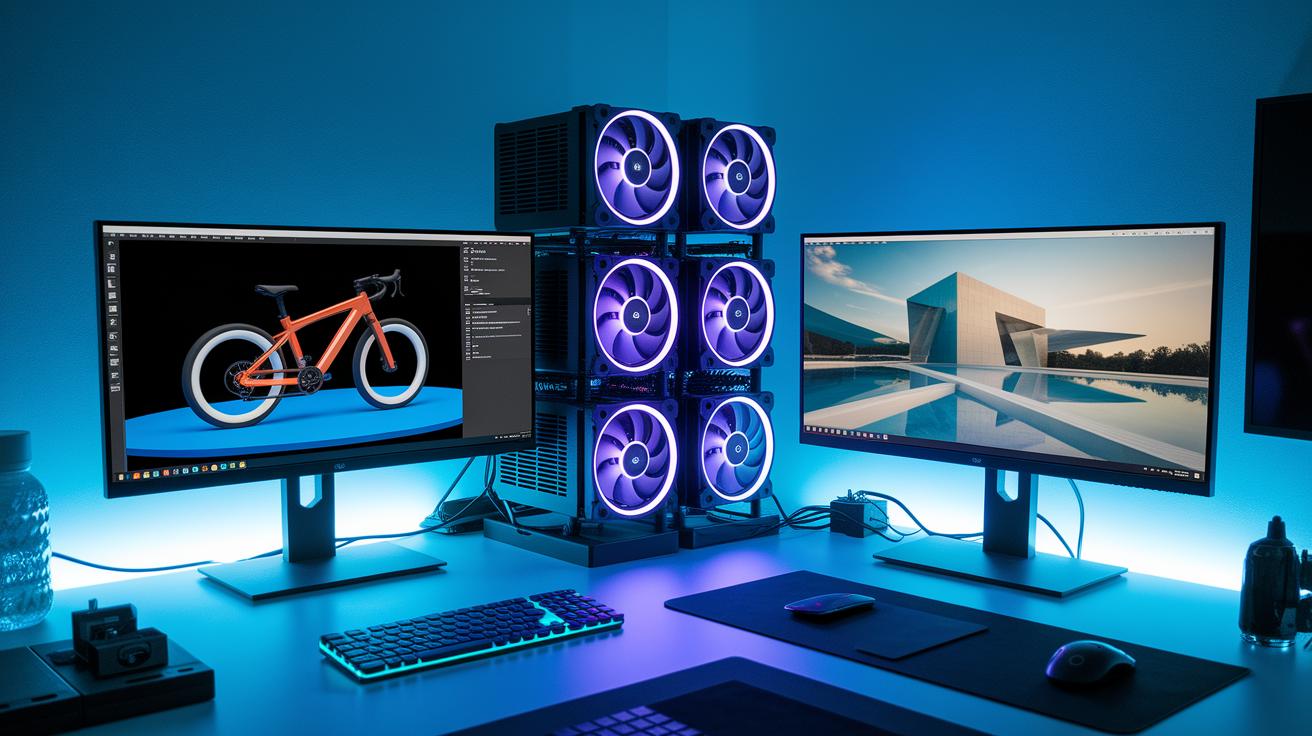
Our GPU workflow helps deliver fast, measurable outcomes for a range of intensive projects. For instance, a bike model with 26.5 million triangles and 64,000 NURBS shows how rapid mesh integration lets us render complex shapes in just 10 to 15 seconds using an NVIDIA RTX A5000 (a high-end graphics processing unit). In another case, an architectural visualization created in Unreal Engine with dynamic lighting runs at 60 frames per second on an AMD Radeon Pro. This smooth, interactive display is perfect for design reviews and quick creative tweaks. In weather forecasting, GPU-driven volumetric kernels deliver updates in less than a second, which is crucial for tracking fast-changing atmospheric conditions. These examples prove that performance matters not only in speed but also in reducing downtime, boosting creative flexibility, and meeting strict efficiency goals.
Every benchmark shows how a chosen GPU setup directly impacts performance. We use modern benchmarking tools along with detailed workload analysis to ensure each deployment meets high standards. Advanced performance monitors, including specialized GPU benchmark software for rendering and AI tasks, help us fine tune setups to each project's needs. The table below summarizes key details for three different projects, helping you set realistic expectations and plan for future scalability.
| Case Study | Workload | GPU Config | Result |
|---|---|---|---|
| Bike Model | 26.5M triangles + 64k NURBS | NVIDIA RTX A5000 | Render in 10–15 s |
| Architectural Viz | Dynamic lighting in Unreal Engine | AMD Radeon Pro | 60 FPS |
| Weather Forecasting | GPU-accelerated volumetric kernels | High-performance GPU array | Sub-second updates |
These case studies highlight how well-integrated GPU solutions provide fast and dependable visual feedback in real-time, high-demand settings.
Troubleshooting Common Challenges in GPU Workflow Integration for Real-Time Visualization
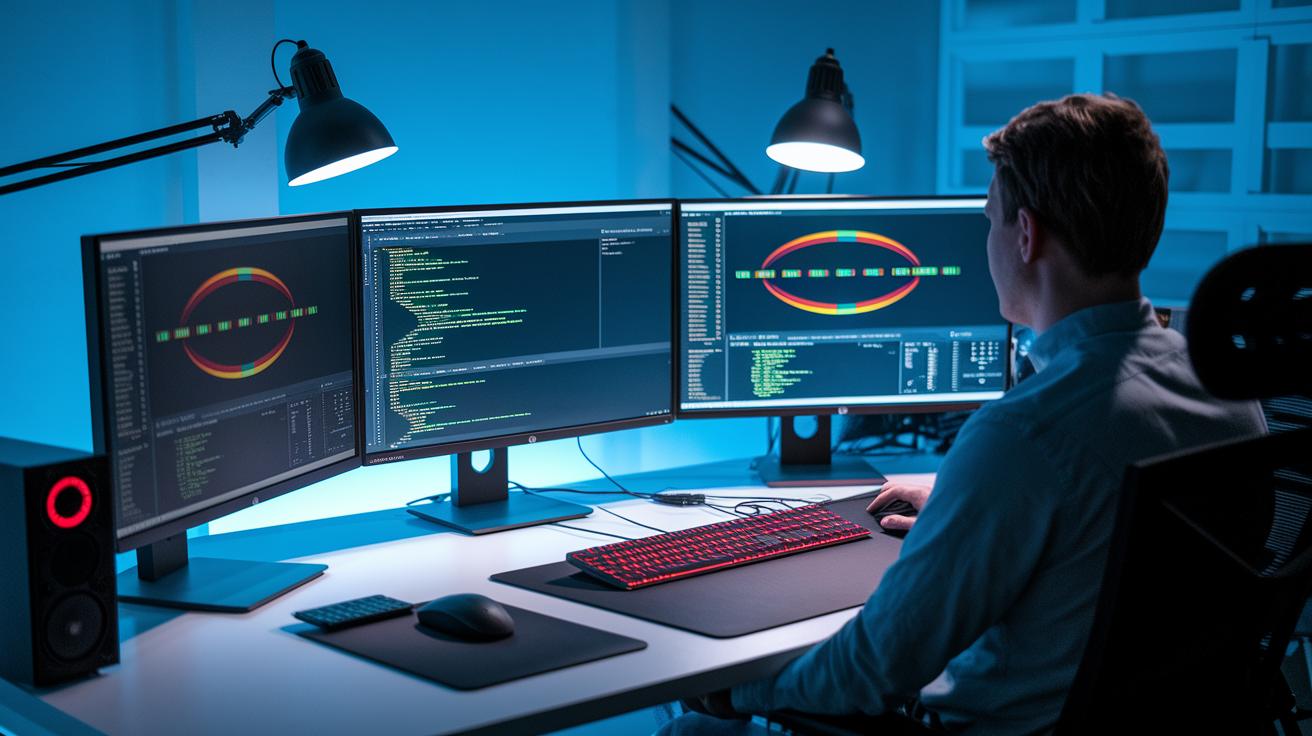
Real-time visualization projects can hit several snags that slow progress and disrupt creative flow. At times, developers run into issues with low VRAM (video memory) during busy moments, causing performance to drop unexpectedly. To tackle this, measure peak memory use and try out-of-core streaming, which helps manage memory better.
Another frequent problem arises from mismatched drivers or APIs. In simple terms, using parts of different software that don’t play well together can make your system unstable. It helps to stick with SDK versions that have been thoroughly tested.
Shader compilation errors can also throw a wrench in the works. These errors occur when building the small code pieces (shaders) used for graphics, interrupting execution. Tools like RenderDoc or Nsight can spot these problems quickly so you can get them fixed.
Sometimes, delays come from issues in geometry syncing (making sure graphical data lines up) or integrated motion analysis. These hiccups cause synchronization stalls that can slow down the whole pipeline. Fine-tuning semaphores and fences (mechanisms to control task order) can smooth things out and keep routines running smoothly.
Here are some targeted tips to help you overcome these hurdles:
- Monitor VRAM usage closely and enable out-of-core streaming to prevent memory shortages.
- Use only tested SDK versions to avoid driver or API mismatches.
- Debug shader issues quickly with tools like RenderDoc or Nsight.
- Adjust semaphores and fences carefully to ease synchronization stalls.
- Train your team on parallel programming models to reduce the overhead from launching many tasks.
These steps not only address common integration issues, they also improve the overall GPU workflow. This means you can fine-tune the algorithms for smooth, high-demand, real-time visualization tasks.
Final Words
In the action, we showed how optimizing hardware choices, streamlined processes, and careful integration turn complex scenes into real-time visuals. We covered everything from performance benchmarks using NVIDIA RTX A5000 to practical troubleshooting until a smooth setup is achieved. Each step reinforces the need for clear, reliable pipelines that boost productivity and reduce delays. Embracing a precise gpu workflow integration for real-time visualization can transform production outcomes, helping you iterate faster and meet deadlines with confidence.
FAQ
What is GPU workflow integration for real-time visualization?
GPU workflow integration for real-time visualization means pairing powerful GPUs with software tools to turn design data into interactive, photorealistic previews. It supports fast, seamless transitions from 2D to 3D.
Are there free tools or examples available for GPU workflow integration in real-time visualization?
Free demos and sample workflows exist, such as using a Lenovo P1 Gen 4 mobile workstation with NVIDIA RTX A5000. This setup demonstrates rapid visualization and smooth data transition in real time.
How does NVIDIA support data visualization and simulation in GPU workflows?
NVIDIA supports data visualization and simulation by offering high-performance GPUs, extensive toolkits, and libraries like CUDA. This setup boosts design, simulation, and interactive analysis tasks with precision.
What does NVIDIA GPGPU mean?
NVIDIA GPGPU means using NVIDIA graphics processing units (GPUs) for general-purpose computing. This accelerates tasks beyond graphics, notably rendering, simulation, and data analysis.
What is available with an NVIDIA IndeX download?
An NVIDIA IndeX download provides a toolset designed to visualize large datasets in real time. It leverages GPU acceleration to offer detailed, interactive views for complex scenes.
What is the purpose of the NVIDIA GPU calculator?
The NVIDIA GPU calculator serves to estimate GPU performance for specific workloads. It helps users benchmark hardware suitability for rendering, simulation, and other compute-intensive tasks.
How is a GPU used for simulation in real-time visualization workflows?
A GPU for simulation speeds up complex computations and detailed rendering processes. It uses parallel processing and high-speed data transfer to deliver real-time, interactive results across various industries.