

Ever noticed your GPU sometimes sits idle even during demanding tasks? Imagine your GPU workflow like a busy kitchen where every station, from loading data to managing resources, plays its part. With careful tuning, we keep GPU activity between 85% and 95%, cutting downtime and boosting overall efficiency. Let’s look at how smart setup can turn complex challenges into fast, smooth results.
Fundamentals of GPU Workflow Pipeline Configuration

We design GPU pipelines to keep expensive GPUs (graphics processing units) running efficiently. These pipelines help avoid delays caused by slow CPUs and inefficient data transfers. Our goal is to maintain GPU utilization between 85% and 95%. Think of it as running a busy kitchen, every station must work in harmony, much like an artist coordinating several brushes to create a masterpiece.
We build these pipelines to streamline every step of data preparation and processing. Our setup creates a high-speed data path that can move more than 10 GB/s. We plan for every task, from scheduling work to integrating systems, so that all parts work smoothly together. In build environments, we address challenges such as containerized GPU tasks and driver compatibility. Sometimes, we even use remote execution to send work to the best-suited machines.
| Step | Description |
|---|---|
| 1. Data ingestion and storage | Bringing in data and keeping it organized. |
| 2. Preprocessing and augmentation | Modifying data to prepare for processing. |
| 3. Task scheduling and job queuing | Organizing tasks so that work flows in order. |
| 4. Compute kernel execution | Running the parts of code that process data on the GPU. |
| 5. Resource allocation and load balancing | Distributing tasks evenly across resources. |
| 6. Monitoring and feedback loops | Checking performance and making adjustments. |
High GPU usage is at the heart of an efficient pipeline. A well-balanced configuration minimizes idle time and boosts performance. By carefully planning every stage, from data ingestion to ongoing monitoring, we meet performance goals and ensure every GPU runs as intended, even in complex multi-node setups.
Designing High-Performance GPU Workflow Pipeline Architecture
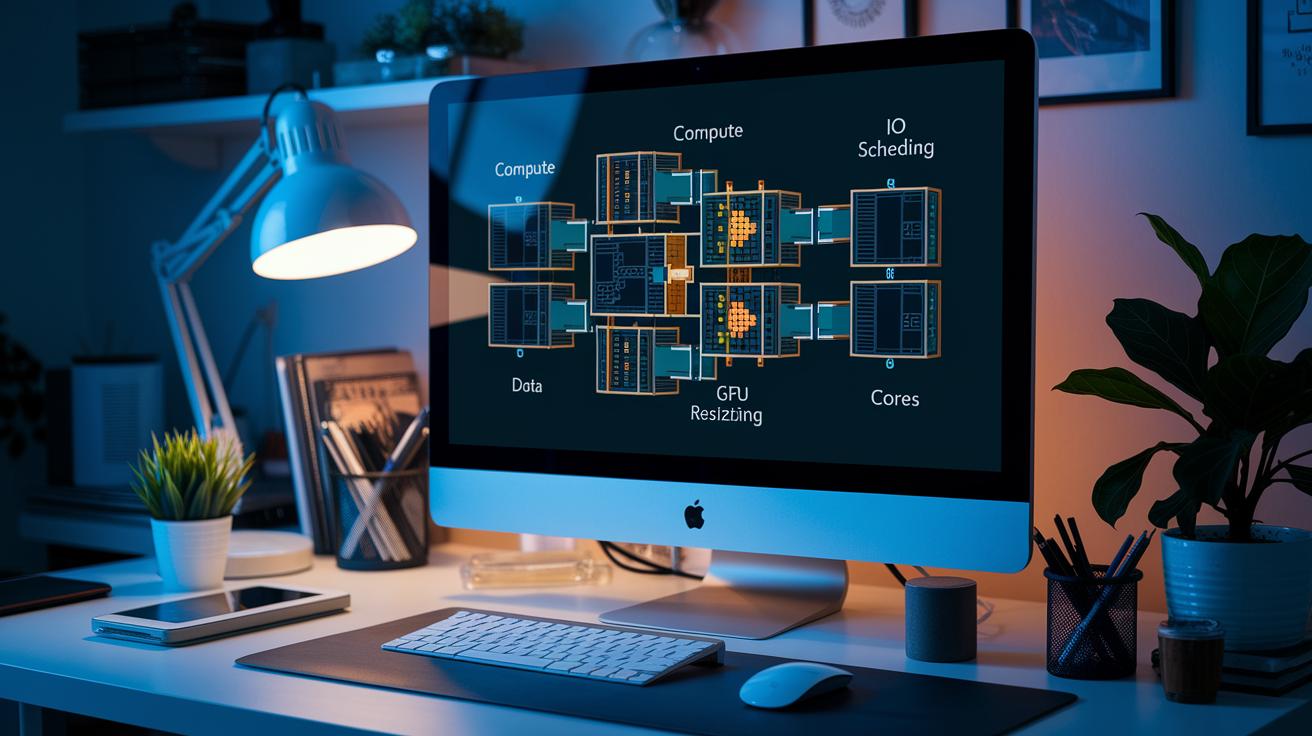
We build a smooth GPU workflow by designing a modular pipeline. Breaking tasks into separate parts like compute, I/O (input/output), and scheduling means we can scale each one on its own and fix issues quickly. Each module runs at peak performance while making it easier to manage resources.
Using multi-process data loaders lets us tap into many CPU cores, keeping the GPUs busy with data. GPU-focused steps, such as image resizing, cut down on delays by moving preprocessing off the CPUs. We carefully set buffer sizes and align memory to match batch sizes and system memory, which stops bottlenecks before they start. With compute, I/O, and orchestration operating independently, you can adjust one area without affecting the rest.
Expanding these modules horizontally across multiple nodes boosts performance even further. When you scale modules separately, adding more nodes increases throughput without needing a full redesign. This modular and scalable method is at the heart of high-performance parallel processing, ensuring GPU pipelines stay efficient even as workloads grow.
Hardware Integration and Resource Allocation in GPU Workflow Pipelines

Choosing the right GPU hardware and making sure the drivers work smoothly is key to integration. Before you deploy, confirm that your operating system and continuous integration and deployment (CI/CD) container setups support your chosen GPUs. Check that driver versions match system needs and that firmware updates are current.
- PCIe lane and NUMA alignment: Make sure GPUs connect to the proper PCIe lanes to avoid bottlenecks. NUMA (non-uniform memory access) awareness helps ensure reliable performance.
- NVLink or high-speed interconnects: These fast connections boost data exchange between GPUs.
- Driver and firmware synchronization: Keeping drivers and firmware consistent across GPUs helps prevent conflicts in multi-GPU setups.
- Remote GPU offloading: Offloading demanding GPU tasks to remote runners can ease pressure on local pipelines and improve resource use.
Balancing the workload across multiple GPUs is essential for peak performance and reducing idle time. We set up resource management practices that evenly spread tasks across available hardware. This approach keeps every GPU running efficiently while ensuring you get the most out of your investment. Aligning container configurations with low-level driver settings and using remote execution when needed helps you manage complex multi-GPU pipelines with steady throughput and strong performance.
Software Stack and Framework Configuration for GPU Workflow Pipelines

CUDA Toolkit and Driver Installation
We begin by ensuring your GPU workflow has the right software support. First, check that your operating system meets all requirements and that your GPU drivers are current. Next, download the CUDA toolkit from the recommended link and install it along with the matching drivers. This setup provides the necessary APIs (application programming interfaces) to help your system communicate with the GPUs.
Framework-Specific Data Pipeline Settings
Properly setting up your data pipeline is key to keeping your GPUs busy. For example, in PyTorch, adjust the DataLoader settings such as num_workers, batch_size, pin_memory, and prefetch_factor to suit your workload. In TensorFlow, use the tf.data pipeline with operations like prefetch, map, batch, and cache. These adjustments reduce data loading delays and help maintain high throughput during training.
Script-Based Configuration and Automation
Automating the setup process makes your workflow more consistent and faster. Use YAML or JSON files paired with bash scripts to define system settings, environment variables, and dependency steps. Container orchestration tools (like nvidia-docker) can automatically assign GPU devices, which is especially useful during CI/CD integration. This script-driven approach ensures that any updates or changes apply uniformly across your entire pipeline.
Performance Optimization and Tuning in GPU Workflow Pipelines

Tuning is key to improving GPU workflows. By adjusting settings regularly, you can spot issues in memory handling, frame render times, and overall performance. Each training run gives you another chance to fine-tune the system. With small tweaks, you can boost throughput by 1.5 to 2 times using mixed precision (FP16 with dynamic loss scaling) and tensor cores.
Think of it like fine-tuning a musical instrument; every detail, from data transfer methods to task scheduling, matters. Optimizing high-speed storage settings and using parallel data transfers across network storage help you maintain I/O speeds over 10 GB/s.
| Parameter | Recommended Value |
|---|---|
| Mixed Precision Mode | FP16 with dynamic loss scaling |
| Batch Size | Maximize per-GPU memory (e.g., 16–32 GB) |
| I/O Buffer Size | Match SSD throughput (e.g., 64 MB chunks) |
| DataLoader Workers | Number of CPU cores minus one |
Using continuous monitoring and automated scripts further sharpens performance. Real-time checks on GPU usage, memory, and bandwidth let your system update settings on the fly. Automation can adjust DataLoader configurations, change buffer sizes, or fine-tune storage access as needed. These updates reduce delays and prevent processing pauses. With ongoing feedback, your GPU pipeline adapts to changing workloads, ensuring each GPU performs at its best.
Debugging and Troubleshooting GPU Workflow Pipeline Setups
Full logging from start to finish is essential for finding and fixing common pipeline problems. By recording GPU usage (how much the graphics processing unit is busy), memory details, and I/O latency (delays in data transfer), you can trace issues right back to their source. This helps you quickly spot problems like driver mismatches, out-of-memory (OOM) errors, or data loader deadlocks, even if your container runtime does not fully support GPUs.
- Verify that your driver and CUDA (NVIDIA compute toolkit) versions match
- Monitor how much memory and work each job uses on the GPU
- Catch and address OOM errors and synchronization issues
- Check your data loaders for possible deadlocks
- Confirm that remote execution paths work as expected
These logs serve as a clear record of your system’s state during each CI/CD run, making it easier to review them during maintenance or when something unexpected happens. This level of detail is very useful when container environments struggle with GPU support.
Regular log reviews, combined with integration tests in your continuous integration/continuous delivery (CI/CD) system, help your team keep systems reliable. Automated tests catch issues early, ensure that new changes do not cause regressions, and keep your performance steady, all while reducing downtime and stopping hidden problems from escalating.
Automating and Orchestrating GPU Workflow Pipeline Configurations

We use orchestration tools and automation frameworks to make GPU pipelines work better and faster. These tools connect different GPU tasks, trim down manual work, and keep your system agile. For example, Dagger lets you send GPU tasks to remote runners so your local setup stays efficient, even when the workload is heavy.
- Dagger-based remote GPU runners
- Kubernetes GPU scheduling with GPU operator
- Infrastructure as code (Terraform, Ansible)
- Automated scale-up/down policies
Automation with scripting streamlines resource setup and drives smart pipeline management. Infrastructure as code lets you set and control GPU configurations in a clear, repeatable way. Kubernetes GPU operators match your task requests with available GPUs (nvidia.com/gpu quotas), ensuring jobs get the right resources. Automated scaling policies adjust resource levels as demand changes, keeping performance smooth.
By mixing dynamic scaling with automated orchestration, we help your GPU pipeline handle evolving needs, maintain reliable performance, and stay ready for future challenges.
Final Words
In the action, we reviewed key steps to build a robust GPU workflow pipeline configuration. We broke down essential components like data ingestion, preprocessing, scheduling, and resource management.
We also covered hardware and software integration, performance tuning, and troubleshooting techniques. A solid GPU workflow pipeline configuration helps maximize GPU utilization while keeping costs and delays in check.
Stay positive and keep pushing your pipeline's potential.
FAQ
How does GPU workflow pipeline configuration work in Python?
The GPU workflow pipeline configuration in Python means using scripts to set up data ingestion, preprocessing, and task scheduling. It automates GPU commands and resource allocations for efficient performance.
What resources such as PDFs and examples are available for GPU workflow pipeline configuration?
Detailed PDFs and practical examples demonstrate GPU workflow pipeline configuration. They cover everything from initial setup to advanced optimizations, offering guided steps on integrating and scaling GPU tasks.
What does a GPU pipeline entail?
The GPU pipeline entails organizing data ingestion, preprocessing, compute tasks, and monitoring to maximize GPU use. It ensures consistent, high-throughput performance by managing dependencies and system resources.
What is meant by a trip through the graphics pipeline?
A trip through the graphics pipeline refers to following data from the first processing stage to final render output. It highlights key stages, such as data staging and compute kernel execution, that enable smooth graphics processing.
How does Nemo2Riva relate to GPU workflows?
Nemo2Riva integrates systems to link with Riva, streamlining GPU workflow configurations. It acts as a bridge using NVIDIA tools, making it easier to deploy GPU-accelerated applications with proper resource management.
What does Riva NVIDIA documentation include, and how is the Riva Python client used?
Riva NVIDIA documentation clarifies configuration, installation, and performance tuning of GPU workflows. The Riva Python client enables developers to interface directly with GPU services, simplifying programming and integration.

