

Have you ever dealt with slow, error-prone renders? A Houdini render farm might be the answer you need. Imagine a group of machines working together like a team of artists. When you connect each computer through a shared workspace and keep the installations the same, you reduce mistakes and speed up your workflow. In this guide, we show you how to set up a render farm that is both fast and dependable, so your projects run smoothly even when pushed to the limit.
Houdini Render Farm Setup: Fast and Reliable
HQueue is built for distributed Houdini rendering using a solid network connection. Every machine must be connected and able to communicate using DNS names or direct IP addresses. You need a shared folder (using NFS or SMB) that every node can access so that scene assets and caches are always available. Think of it as a central workspace for all your render data.
Consistency matters. Houdini should be installed on every machine and follow the same directory setup. This uniformity helps prevent load errors and keeps job management running smoothly. By running the HQueue server on a dedicated host (for example, serverMachine:5000), you can easily add client machines through Houdini Launcher and simplify your distributed rendering setup.
- Ensure all machines are connected to the network.
- Create and mount a shared folder using NFS or SMB.
- Install Houdini on both the server and client machines.
- Launch the HQueue server and set up its web interface.
- Register the shared folder in HQueue.
- Add client machines with Houdini Launcher.
- Verify connectivity and submit a test job.
Following these seven steps lays a strong foundation for a reliable Houdini render farm. With solid network links, shared storage, and consistent Houdini installations, you prepare for a smooth production render queue. This basic setup not only reduces delays and crashes but also makes it easier to expand your farm for more demanding configurations and higher volumes of simultaneous render jobs.
Hardware and Network Essentials for Your Houdini Render Farm

A solid render farm depends on reliable hardware and a smart network design that prevents delays. We focus on optimizing node communication, managing shared storage, and keeping network latency low so your renders complete faster.
Node Hardware Requirements
For a Houdini render farm to perform at its best, every node needs strong hardware. We suggest a minimum of 16 CPU cores and more than 64 GB of RAM for heavy tasks. For GPU nodes, a multi-GPU setup , such as 2×, 4×, 6×, or 8× RTX 3090 , improves parallel processing speed. In addition, proper power supplies and cooling systems help maintain stability during long render sessions. The master server, which handles scheduling and acts as a database host, must also meet high-performance computing standards to keep the system running smoothly.
Network Topology & Shared Storage
A high-performing network is essential to the render farm's success. Using DNS names or IP addresses ensures smooth node communication, and VLAN segmentation can separate render data from other traffic. Shared storage through NFS or SMB, supported by RAID arrays for better throughput, makes sure every node accesses scene data and caches quickly. Network switches with 10GbE or RDMA support cut latency, improving disk I/O and overall system reliability.
| Component | Recommended Specs | Details |
|---|---|---|
| GPU Node | 4× RTX 3090, 24-core CPU, 128 GB RAM | High parallel throughput |
| Master Server | Dual Xeon, 64 GB RAM | Job management & DB hosting |
| Storage System | 100 TB RAID-10, 10 GbE | Shared scene data & cache |
| Network Switch | 10/25 GbE, RDMA support | Low-latency clustering |
This setup of high-end nodes and an optimized network foundation ensures stable, high-throughput rendering. It is built to handle demanding workloads while keeping your render jobs on schedule.
Software Configuration: HQueue, Licensing & Plugin Installation
HQueue Server Installation
Start by checking that your host meets all the software requirements. For example, on a machine like serverMachine:5000, you need a suitable operating system, open network ports, and rights to install server software. Next, download and run the HQueue server software. This step sets up the backbone of your distributed rendering system. Run the installer and confirm that the key services launch automatically when the system starts. Once your server is active, log in to its web interface and register the shared folder. Use either NFS (network file system) or SMB (server message block) to ensure that all nodes can access the same data. This uniform access simplifies remote node connections across the entire render farm.
HQueue Client Configuration & Licensing
Launch Houdini Launcher on each client machine and point it to the HQueue server’s URL so that they can quickly join your farm. Make sure every client uses the same Houdini installation path and version. This consistency ensures that jobs are submitted smoothly. Next, verify the centralized Houdini licensing system using node locks or token licenses. This step ensures the system correctly recognizes every client. After confirming licensing, activate the built-in plugin in Houdini by adding a dedicated node that manages the server connection. This plugin makes it easier to add render jobs into your production queue.
Finally, be aware that support for TOP and PDG workflows is coming soon. Run a test render to confirm that your distributed rendering configuration, job submission process, and remote node access work as expected.
Render Job Management and Scheduling in Houdini Farms
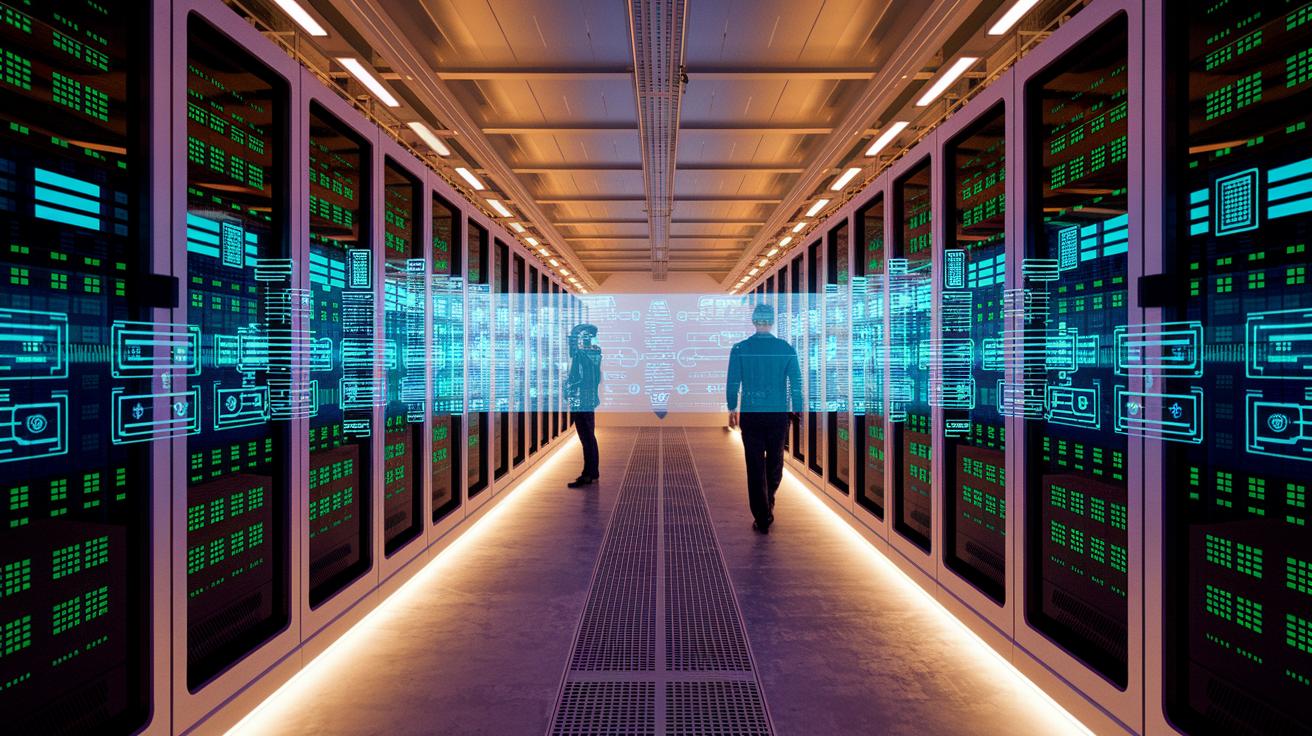
Our production render queue is at the heart of your farm. It sets job details so every render runs smoothly. By prioritizing tasks and allocating compute power, each job gets exactly what it needs. This organized approach lessens reliance on single-threaded processing, which in turn cuts down wait times and handles crashes more gracefully.
We use two simple scheduling methods. Frame-based scheduling checks each frame in your scene, while task-based scheduling breaks complex jobs into smaller parts. Both methods share work evenly among nodes. For example, a scheduling strategy using GPU cluster orchestration (a system that manages GPU tasks) automatically adjusts loads so that each frame or task goes to the best-suited node.
Running multiple render jobs at once boosts overall efficiency. Your farm processes different parts of a scene simultaneously, making full use of every node. This not only increases throughput but also balances the computational load. By running tasks in parallel, idle times shrink and performance improves during heavy production periods.
Dynamic node allocation and balancing help you optimize resources. The Pre-Flight Panel lets you review the scene before a job goes live, catching misconfigurations early. A native plugin supports ROP (Render Output Processing), LOP (Light Operator), and SOP (Surface Operator) networks, with plans to add TOP (Task Operator) and PDG (Procedural Dependency Graph) workflows soon. These tools offer flexible scheduling that adapts to real-time job demands, ensuring smooth operation even on the toughest projects.
Performance Tuning for Houdini Render Farms
Improving disk I/O (input/output) speed is key for a smooth render experience. Use the same Houdini installation path on all nodes so that missing assets do not slow you down. You can also reduce repeated disk reads by using asset caching to store frequently used data. Adjust your shared storage settings by tuning NFS mount options like rsize, wsize, and activating async mode. For example, you might mount your storage with a command such as "mount -o rsize=32768,wsize=32768,async" to improve data flow during heavy workloads. These tweaks lower overhead and help your disk system work in sync with your overall performance.
GPU acceleration is essential for optimizing Houdini ROP nodes. Choose the right CUDA (NVIDIA compute toolkit) devices and set proper memory limits on each GPU to avoid over-allocation during intensive tasks. Ensure every node targets the intended GPU indices, especially in multi-GPU setups. For instance, you might include a line like "CUDA_VISIBLE_DEVICES=0,1" in your startup script to manage GPU usage. These adjustments balance the load across GPUs and maximize parallel processing.
Enhancing CPU performance involves careful handling of threading and memory use. Use multi-threading for PDG tasks and assign specific cores to dedicated processes to avoid contention. Process affinity settings can help keep threads close together, reducing delays. Being aware of NUMA (non-uniform memory access) helps you allocate tasks to local memory, lowering cross-node latencies. Combined with disk and GPU tuning, these strategies build a fast and reliable Houdini render farm.
Monitoring and Troubleshooting Your Houdini Render Farm

We help you keep your render farm running smoothly with reliable monitoring tools and dashboards. You can check HQueue logs either through the web interface or by looking at local log files. This gives you clear insights into how jobs are performing and any errors that might show up. You can watch important metrics like CPU (central processing unit) and GPU (graphics processing unit) usage, RAM use, and disk activity to avoid performance issues. Our Pre-Flight Panel reviews scene settings before you send off any jobs so that potential problems are caught early. And if you are using our cloud service, weekend support is available from 6:00 AM to 11:59 PM to help with urgent issues.
Often, problems come from network interruptions, license mismatches, or asset paths that are not set up correctly. If a node fails to connect, check that the DNS names are resolving correctly and that machines can ping each other using IP addresses. License issues may cause a client to go unrecognized, so make sure every machine uses the same Houdini installation path. Troubleshooting scripts and clear error handling procedures explain the error scenarios and offer step-by-step fixes. This approach helps reduce downtime and keeps your rendering on schedule.
Strong backup plans and regular log rotation are essential for recovery and long-term stability. Regularly backing up configuration files and job histories lets you revert quickly to a stable state if needed. Setting up a routine for log rotation prevents file system overloads and keeps historical data available for audits. Combined with continuous resource monitoring and solid error handling, these practices form a strong foundation for your Houdini render farm.
Integrating Cloud Services into Your Houdini Render Farm
Cloud render integration lets you expand your local Houdini setup with extra cloud power for busy periods. Services like iRender GPU Cloud provide scalable compute resources, from 1 to 8 RTX 3090 (powerful graphics processing units), that help when workload demands spike. This hybrid model merges your on-site hardware with on-demand cloud nodes so that major projects run without delay. For instance, if a task needs more compute strength, the cloud burst workflow automatically adds the resources, keeping render times fast and dependable even at peak load.
High-speed data transfer is key to making cloud services work well. You need to use high-speed links and best practices to move your shared assets quickly between local setups and the cloud. Simple methods like compressing scene data and using dedicated network paths help stop bottlenecks that could slow rendering. Regular checks of asset synchronization keep all your files current, ensuring a smooth render pipeline.
Managing billing and cost is vital when using cloud-based render farms. Credit-based systems let you match your expenses with actual workloads. The Cloud Manager app gives you a central dashboard for tracking spending, managing credits, and reviewing job history alongside team deadlines. This control panel makes it easy to scale your compute power as needed while keeping costs under control.
Final Words
In the action, we walked through the steps for a comprehensive houdini render farm setup. We covered everything from ensuring network connectivity and shared storage to installing Houdini and configuring HQueue for distributed rendering.
These guidelines lay the foundation for building a reliable, scalable render farm that speeds up both rendering and training times. By following these best practices, you can expect more predictable production and a smoother workflow. Keep moving forward with confidence and embrace your next creative challenge.
FAQ
Frequently Asked Questions
How do I set up and use a Houdini render farm?
The Houdini render farm setup involves connecting machines over a network, sharing a common folder, and installing Houdini uniformly, with HQueue to manage render nodes and job submissions.
What is Fox Render Farm and how does it support Houdini?
Fox Render Farm offers cloud-based rendering services that support Houdini projects by providing scalable compute resources, enabling you to submit jobs and track progress easily during heavy rendering tasks.
What is the best render farm for Houdini?
The best render farm for Houdini depends on your project’s scale and budget. Compare features such as hardware specs, compatibility, network speed, and pricing to find a service that meets your needs.
Are render farms worth it?
Render farms prove their worth by significantly reducing render times on demanding projects. They distribute heavy workloads, improve efficiency, and allow you to focus on creativity without long wait periods.
Is Houdini CPU or GPU intensive?
Houdini can be both CPU intensive and GPU intensive, depending on the task. Simulations usually require strong CPUs, while rendering tasks often benefit from high-performance GPUs for faster output.
How do I choose the right render farm?
The best way to choose a render farm is to compare options based on hardware quality, network performance, pricing, and support for scheduling and licensing, ensuring that it aligns with your Houdini setup needs.

