

Have you ever imagined cutting your simulation cycles from days to hours? With optimized GPU workflows, you can speed up design tasks for projects like micro-LED and CMOS image sensors. We use well-tuned CUDA libraries (NVIDIA compute toolkit) and smart clustering setups to help you run tests faster and try out more configurations in less time. This means shorter wait times and a more agile approach to simulation and design.
Optimizing GPU Throughput for Rapid Simulation and Design
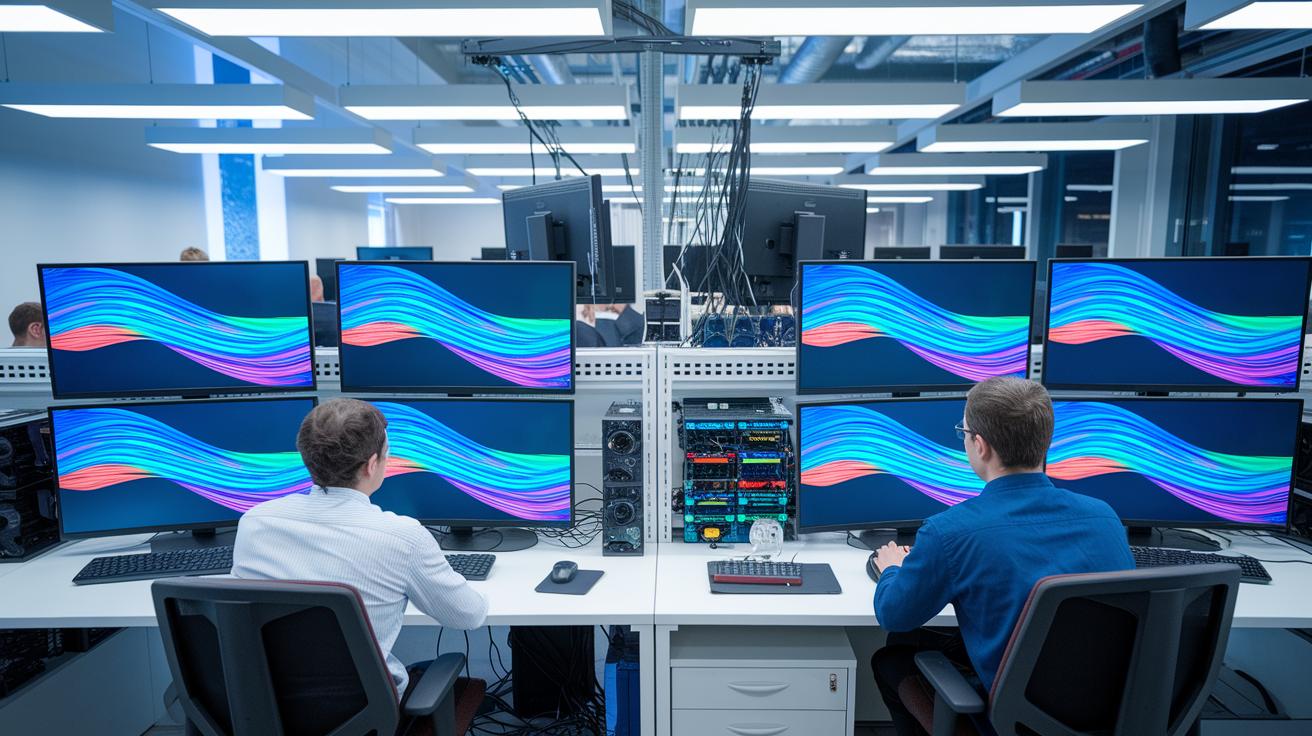
GPU workflows can cut simulation cycles from days or even weeks down to just a few hours. By using modern accelerated computing methods, engineers can fully harness the power of today’s GPUs (graphics processing units) for projects like micro-LED and CMOS image-sensor design. In our tests, FullWAVE FDTD has boosted electromagnetic simulation speed by up to 80×, so results that took all night are now ready in record time.
Efficiency matters, so real-time processing and quick adjustments play a key role. With interactive what-if analyses and tools to instantly tweak parameters, design changes feel more agile and creative. Digital twin models powered by AI physics frameworks can speed up workflows by as much as 500× in some cases. This speedup not only shortens simulation time but also speeds up decisions in critical fields like aerospace and automotive design.
System throughput optimization is about syncing hardware and software. We use enhanced CUDA libraries (NVIDIA compute toolkit), refined drivers, and close links between simulation software and GPU clusters. We reduce execution time by fine-tuning computation kernels and optimizing memory use. Some best practices include:
| Practice | Description |
|---|---|
| Parallel Computation | Divide large simulations into smaller tasks to run concurrently. |
| Efficient Cluster Setup | Configure GPU clusters to distribute workloads effectively. |
| Real-Time Monitoring | Use monitoring tools to detect issues and adjust processing on the fly. |
These methods highlight how syncing hardware with software maximizes performance. With much shorter simulation cycles, you can iterate faster, test more configurations, and validate new designs in real time, ensuring you stay competitive in a fast-evolving market.
Hardware–Software Integration for Maximum GPU Efficiency

When you combine the latest GPU hardware with a streamlined software stack, you get simulation workflows that are both fast and reliable. For instance, COMSOL Multiphysics® 6.3 uses NVIDIA CUDA-X cuBLAS (a library that speeds up math operations on the GPU) to reduce run times for large, high-frequency simulations. COMSOL 6.4 goes a step further by supporting multi-GPU clusters, so time-dependent acoustics can process in parallel while keeping resource allocation precise.
Successful hardware and software integration starts with careful planning of your compute setup. The newest GPUs deliver strong performance but require efficient cooling and solid thermal management to avoid slowdowns. Optimized cooling ensures that GPU cards run at full power without hitting thermal limits, and smart resource allocation spreads tasks evenly across the cluster.
In simulation applications like FullWAVE FDTD, moving electromagnetic solvers to GPUs can achieve up to 80× speedups compared to relying solely on CPUs. This improvement is possible by using optimized CUDA libraries (look up the NVIDIA CUDA Toolkit for more details) that align software functions with advanced hardware features. A combination of well-tuned drivers, proactive monitoring tools, and automated cooling adjustments forms the backbone of these high-performance setups.
Using practices such as detailed thermal monitoring and strategic task scheduling helps maintain continuous GPU use. This not only minimizes bottlenecks but also boost simulation throughput and speeds up design iterations.
A tight hardware-software synergy does more than speed up simulations, it also extends the life of your hardware. We recommend routine inspections and timely cooling system adjustments, along with regular driver updates, so every component stays optimized for heavy workloads and demanding simulation tasks. This method results in a robust, adaptable, and efficient simulation environment.
Software Tuning and Algorithm Optimization in GPU Workflows

NVIDIA cuDSS direct sparse solver speeds up simulations by cutting large, sparse linear-system calculations (systems with many zero values) from overnight tasks to just a few hours. This improvement is vital for tasks like implicit time stepping, nonlinear analyses, or eigenfrequency studies. You can further refine your workflow with smart code tweaks and high-performance math libraries. For example, reallocating work across threads cuts down kernel latency (the brief delay before a GPU starts processing), which helps boost overall throughput.
COMSOL uses deep-neural-network training to quicken simulation app training times. Instead of waiting through long training sessions, small adjustments in neural network settings can significantly cut runtime. A practical tip: review your batch size, node count, and GPU memory use in your training loop because even minor changes here can dramatically reduce simulation time. Here’s a brief example:
Code snippet:
// Configure deep learning parameters
int batchSize = 64;
int nodeCount = 8;
// Pre-allocate GPU memory to ensure efficient usage
optimizeGPUAllocation(batchSize, nodeCount);
Cadence Fidelity CFD shows the value of fine-tuning algorithms even more clearly. Their AI-powered surrogate model generation decreases computational overhead by streamlining multithreading. When each thread handles a specific sub-task, render time falls and simulation cycles become more responsive.
Key practices include careful parameter tuning, systematic code refactoring, and regular performance diagnostics. We suggest profiling your algorithms to spot slow areas, parallelizing tasks when possible, and always checking that your tweaks suit your hardware. With these strategies, GPU workflows become faster, more predictable, and better equipped to handle complex simulation tasks.
Performance Profiling and Bottleneck Resolution Methods

Engineers can gain valuable insights into GPU workflows by using profiling and benchmarking tools that pinpoint slowdowns in memory access, compute scheduling, and kernel launches. Tools like NVIDIA Nsight Systems and Nsight Compute give you a clear timeline of GPU tasks and detailed kernel data, so you know exactly where time is spent. For example, comparing FDTD GPU performance with that of a CPU can reveal issues such as inefficient memory transfers or delays in launching kernels.
A systematic profiling workflow involves a few key steps:
- Collect metrics: Record data on memory usage, execution times, and kernel occupancy.
- Analyze occupancy charts: Find underused GPU units that might be slowing your process.
- Compare with CPU performance: See how individual tasks stack up between GPU and CPU.
- Identify bottlenecks: Focus on areas with long delays in kernel dispatch or slow data transfers.
Additionally, runtime performance diagnostics help fine-tune your workload by optimizing resource allocation. Reviewing throughput charts shows you how well compute and memory operations are balanced. With targeted tweaks based on these findings, engineers can overcome execution bottlenecks and streamline simulation workflows. This approach not only enhances performance but also makes sure that GPU resources are fully utilized for faster simulation and design processes.
Memory Bandwidth and Data Throughput Optimization Strategies

Improving memory throughput speeds up simulation and design work. Modern GPUs use a hierarchy of memory levels, including shared memory, L1 cache, and L2 cache, to cut down on delays from accessing global memory. Techniques such as tiling and coalesced loads help lower these delays. For example, COMSOL 6.3 moves large arrays to GPU DRAM (dynamic random-access memory) so that data stays close to the compute cores, which boosts performance when handling large simulations.
Using shared-memory buffering and arranging data efficiently further improves throughput. In COMSOL 6.4, domain-decomposition techniques spread data across multiple GPUs. This minimizes communication overhead over PCIe (Peripheral Component Interconnect Express) or NVLink. A quick tip: break your data into tiles and assign each tile to shared memory with coalesced load patterns for smooth transfers. These strategies, tiling, shared-memory buffering, coalesced loads, and optimized data layouts, help scale virtual environments and manage GPU clusters efficiently, leading to faster and more reliable simulation outcomes.
Automating and Scaling Compute-Intensive Workflows with Cluster Orchestration

When simulation tasks become more complex, automating deployment and scaling is crucial. COMSOL 6.4 now supports multi-GPU clusters for time-explicit acoustics by distributing work across several nodes. This setup not only speeds up heavy simulations but also makes better use of cluster resources.
Containerization is key to managing these workflows. Docker NVIDIA containers provide consistent, repeatable deployments across different settings. Paired with tools like the NVIDIA Kubernetes GPU Operator (a system for managing GPU clusters), these containers enable fast scaling, smart task scheduling, and flexible resource management. Together, these modern tools ensure every available GPU is used effectively.
Cadence’s Millennium M2000 AI Supercomputer demonstrates the strength of these automated approaches. By using GB200 technology, it runs thousands of detailed airframe simulations in just a few weeks, showing how proper orchestration can shrink the time to insight. Best practices include:
- Using containerized, scalable simulation setups
- Employing orchestration frameworks to handle node management automatically
- Configuring dynamic scheduling algorithms to balance workloads
By combining these techniques, you can build a compute environment where simulations perform smoothly, tasks are evenly spread, and overall efficiency is significantly improved.
Optimizing GPU Workflows for Simulation and Design: Unleashed

Combining simulation outputs with visualization engines creates a powerful feedback loop for design engineers. With GPU-accelerated digital twins and COMSOL Application Builder simulation apps, you can adjust parameters and watch changes happen instantly. For example, a simple slider adjustment in a simulation app lets you see real-time shifts in fluid dynamics or stress distribution, much like watching an artist fine-tune their canvas.
Interactive visualization tools work hand-in-hand with real-time data processing to simplify design reviews. You can connect engines like OpenGL (graphics library) or Vulkan (graphics API) with simulation outputs from COMSOL to generate on-the-fly visualizations. This method proves especially useful in aerospace and automotive design, where NVIDIA PhysicsNeMo powers AI-driven physics frameworks to run interactive what-if analyses. These tools let you simulate different design scenarios on the spot, enhancing decision-making with fast and clear visual feedback.
Key practices include:
- Adjusting simulation parameters in real time with evolving data.
- Integrating simulation apps seamlessly with visualization engines.
- Automating parameter tweaks to provide immediate visual feedback during design cycles.
These strategies build a dynamic workflow where every adjustment is reflected at once, keeping your design and simulation perfectly in sync.
Case Studies: Enriched GPU Optimization Insights

Micro-LED teams now use GPU-accelerated finite-difference time-domain (FDTD) simulation for detailed light-field analysis, achieving up to 80× speed improvements. This boost brings nearly real-time design feedback. One engineer explained, "We reduced overnight simulations to under an hour." Developers also add performance counters to measure kernel usage, so they can tweak the system for more than just raw speed gains.
CMOS image-sensor designers have moved past simply cutting run times. They have slashed processing from weeks to hours and now use real-time analytics to spot hidden bottlenecks. These insights help improve memory management and streamline compute-heavy tasks.
In aerospace simulations, the focus has shifted from sheer speed to building a resilient workflow. Using Cadence with GPU-accelerated PhysicsNeMo, teams see results up to 500× faster. They also use specialized libraries for sparse matrix solutions and adaptive kernel scheduling, which minimizes delays and supports interactive what-if tests. One project manager noted, "Real-time analysis now paves the way for new design iterations."
Snippet writing tip: Start with a surprising fact. For example, "Before prototyping, our simulations revealed bottlenecks that took hours of manual tuning, turning challenges into opportunities for optimization."
| Application Area | Key Insight |
|---|---|
| Micro-LED | 80× speedup with real-time feedback and kernel profiling |
| CMOS Sensors | Weeks reduced to hours with enhanced analytics |
| Aerospace | 500× acceleration with adaptive scheduling and sparse matrix libraries |
Future Trends in GPU-Accelerated Simulation and Design

Emerging GPU technologies are changing how we run simulations. AI-integrated simulation is now a key part of design. New GPU architectures deliver higher performance (measured in FLOPS, or floating-point operations per second) and improved energy efficiency. This progress enables exascale GPU clusters for very complex tasks. As simulation models grow more detailed, engineers can run high-resolution models faster and with reliable results.
Solutions like the NVIDIA AI Factory Research Center and the Vera Rubin platform are pushing boundaries. They mix artificial intelligence with physics to automate what-if analyses and adjust workflows on the fly. We now see hybrid compute strategies that combine traditional methods with accelerated processing to achieve the best results. Scalability engineering helps simulation systems keep pace with increasing data and evolving model needs.
Advances in hardware are also sparking breakthroughs in rendering. Smarter AI integration along with efficient GPU channels is setting up more adaptable simulation processes. These trends promise to reshape design and improve how we work with complex models.
Final Words
In the action, we explored practical strategies that boost GPU performance, from hardware-software integration and cutting-edge algorithm optimizations to real-time visualization and interactive simulations.
We shared key best practices and real-world case studies that show how simulation cycles shrink from days to hours. By focusing on optimizing gpu workflows for simulation and design, we pave the way for faster, reliable, and scalable creative and engineering processes. Stay confident, stay innovative.
FAQ
What are best practices for optimizing GPU workflows for simulation and design?
Optimizing GPU workflows for simulation and design means streamlining compute tasks by using efficient memory management, tuned algorithms, and proper hardware–software integration to cut simulation cycles from days to hours.
What does Ansys GPU acceleration do?
Ansys GPU acceleration speeds up simulation tasks by handing heavy computations to compatible GPUs (graphics processing units), reducing run times and boosting productivity in complex engineering models.
How do I enable GPU acceleration in Ansys Workbench?
Enabling GPU acceleration in Ansys Workbench involves configuring your simulation settings to use supported GPUs, installing the correct drivers, and meeting software prerequisites, as detailed in Ansys documentation.
What are Ansys GPU recommendations and which GPUs are supported?
Ansys GPU recommendations suggest using GPUs that support CUDA (NVIDIA compute toolkit) and meet memory specifications. Supported GPUs typically include many current NVIDIA models, ensuring optimal simulation performance.
How do I use GPU in Ansys Fluent?
Using GPU in Ansys Fluent involves setting up your simulation to offload compute-intensive tasks to the GPU, which helps accelerate fluid dynamics analyses and improve overall simulation efficiency.
What are the requirements for GPUs in Ansys and for the GPU accelerator in Mechanical APDL?
GPU requirements for Ansys and Mechanical APDL include using high-memory, CUDA-capable GPUs that meet performance and thermal standards defined by Ansys guidelines, ensuring effective acceleration of engineering computations.

