
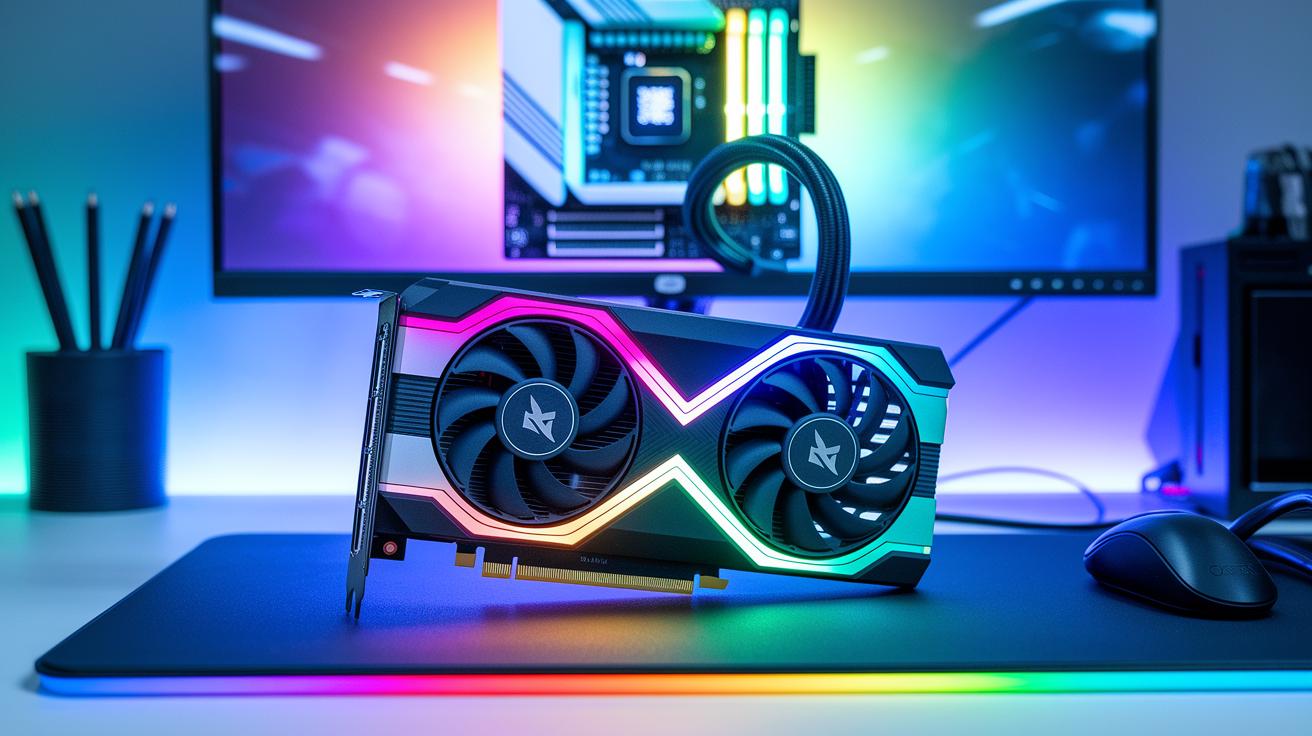
Ever wondered if your computer could get more done with less effort? GPU acceleration moves heavy tasks from the CPU (central processing unit) to the GPU (graphics processing unit), which is designed to work on many tasks at the same time. This means image processing, simulations, and video rendering can run much faster by processing several operations concurrently. In this post, we show how using GPU acceleration can lower render times and boost your productivity. Read on to see how this technology turns complicated jobs into smooth, efficient workflows.
what is gpu acceleration: Supercharge Your Performance
GPU acceleration boosts computing performance by shifting work from the central processing unit (CPU) to the graphics processing unit (GPU). GPUs are built with hundreds or thousands of small cores that work together to handle many operations at once. This makes them ideal for heavy tasks like image processing, simulations, AI computations, and real-time video rendering.
Traditional CPUs rely on a few strong cores to handle tasks one after another, which works well for sequential processes. In contrast, GPUs break down tasks across many smaller cores, allowing for simultaneous calculations. Early floating-point co-processors from the 1980s laid the groundwork for these parallel methods, which significantly reduce the time needed for compute-heavy jobs compared to relying on CPUs alone.
The first GPUs appeared in the 1980s with a focus on fast math calculations. Since then, they have evolved through generations including Tesla, Fermi, Kepler, Maxwell, Pascal, Volta, Turing, Ampere, Hopper, and Blackwell. By 2006, NVIDIA had shipped about 500 million GPUs, a major milestone that highlighted their growing role in both graphics and general computing.
Today, GPU acceleration plays a vital role in high-performance computing. It speeds up render times, enables more efficient simulation runs, and streamlines video editing workflows. With its shift from sequential to parallel processing, GPU acceleration not only enhances overall system performance but also opens new avenues for creativity and productivity.
GPU vs CPU: Core Architecture & Performance Differences
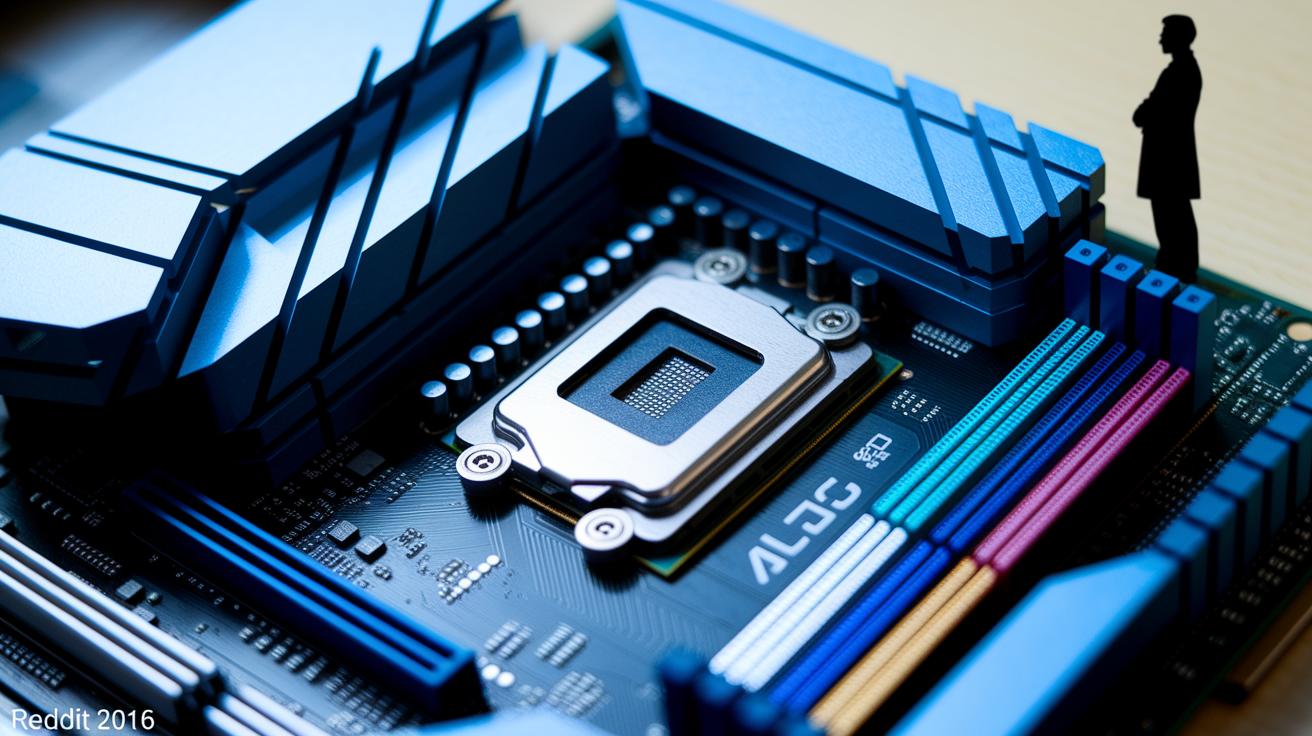
CPUs work through tasks one after the other using a few powerful cores. They are ideal for jobs that need step-by-step instructions. GPUs, on the other hand, pack hundreds or even thousands of lighter cores that handle many tasks at the same time. This design gives GPUs a big boost when working with large amounts of data or repetitive processes.
This difference in design means GPUs can lower delays and use energy more efficiently in tasks like video editing, image processing, and simulation. When the CPU manages system tasks, the GPU takes over heavy lifting such as complex math calculations and visual effects. Together, they balance performance to meet various needs.
- CPUs complete tasks sequentially with a few high-performance cores.
- GPUs process tasks in parallel with many lightweight cores.
- GPUs cut down on delays and improve energy efficiency in repeated operations.
Imagine you are editing a video. The CPU organizes your clip sequence and handles file input/output, while the GPU applies several visual effects at the same time. This division of labor shortens overall render times.
| Aspect | CPU | GPU |
|---|---|---|
| Task Processing | Sequential | Parallel |
| Core Count | Few high-performance cores | Hundreds or thousands of cores |
| Energy Efficiency | Moderate | Optimized for repetitive tasks |
Visual Rendering Speed-Up & Video Effects Acceleration
GPU acceleration speeds up video editing by streamlining render processes and enhancing video effects. We use APIs like CUDA (NVIDIA compute toolkit), OpenCL (open computing language), and Metal (Apple's graphics API) to process intricate visuals that once slowed systems down.
When you enable the Mercury Playback Engine GPU Acceleration in Adobe Premiere Pro, real-time playback stays smooth. Layered effects render faster. Demanding tasks such as VR and high-resolution codec decoding move from the CPU to the GPU. Imagine adjusting brightness and contrast on the fly just like watching a live performance without lag.
Accelerated image processing makes clips update fluidly and cuts export times. We achieve this by spreading routine tasks over hundreds of small processing cores. This turns heavy computations into lighter, parallel operations, reducing wait time and boosting creative output.
• GPU acceleration lets you edit in real time with complex visuals.
• The Mercury Playback Engine offloads heavy tasks to GPU cores.
• VR, high-resolution decoding, and intense filters run with ease.
Teams and collaboration tools also gain from GPU-based media optimization. Live production environments use these techniques to lower bandwidth loads and improve stream quality. Picture a video conference where effects and transitions render smoothly without glitches.
| Feature | CPU-Based | GPU-Accelerated |
|---|---|---|
| Rendering Speed | Sequential, slower tasks | Parallel, faster processing |
| Effect Processing | Limited live previews | Smooth workflows |
Accelerated Imagery & Compute Shader Improvements

Modern accelerated imagery uses compute shaders on GPUs to perform custom tasks on visual elements like vertices and pixels. Compute shaders are small programs that turn raw data into images by handling many elements simultaneously. For instance, imagine adjusting the hue for every pixel at the same time; this parallel processing makes the process fast and efficient.
OpenCL based rendering improvements offer a solution that works with many different types of hardware. OpenCL uses standardized libraries to help with tasks such as image convolution (a method to blend pixels) and color grading. This creates a steady rendering pipeline across a variety of GPU brands.
CUDA is an NVIDIA-specific technology that delivers math routines fine-tuned for NVIDIA GPUs. When you work on complex image processing or 3D simulation tasks, CUDA can often speed up the work by using its specialized libraries. In one test, a typical image convolution task showed a 2.5x reduction in the time needed for each pixel using CUDA-optimized routines. This example shows how compute shaders cut down execution time by splitting work across many GPU cores (using Single Instruction, Multiple Data processing).
Other options like Vulkan Compute further broaden the choices for developers. It provides another vendor-neutral way to build high-performance rendering solutions. You can opt for OpenCL if you value hardware flexibility or choose CUDA to take advantage of NVIDIA's strengths. These compute engines break large data arrays into smaller chunks and process them at once, which helps reduce render time significantly.
By combining compute shaders with the unique benefits of various compute platforms, accelerated imagery tools enhance image effects and improve real-time processing. This mix of options makes GPU acceleration key to modern image processing and simulations. Using these techniques leads to smoother workflows and faster results.
GPU Acceleration Across Graphics Types: Integrated vs Dedicated
Many laptops and basic PCs use integrated GPUs. These chips share system memory, which limits both bandwidth and compute power. When you work on tasks like real-time rendering or complex visual effects, the shared memory can slow you down. For example, editing a high-resolution video on a low-end machine can feel laggy due to this memory bottleneck.
Dedicated GPUs, on the other hand, have their own onboard memory (VRAM) and much higher memory bandwidth. This setup speeds up render time and lets you tackle graphics-heavy projects with fewer delays. Switching from an integrated GPU to a dedicated graphics card can change a choppy preview into a smooth editing experience.
Key differences include:
- Integrated GPUs use shared system memory, while dedicated GPUs use their own VRAM.
- Dedicated GPUs offer faster processing and quicker data transfer.
- Systems with integrated graphics may struggle with complex visual effects.
| Feature | Integrated GPU | Dedicated GPU |
|---|---|---|
| Memory Usage | Shared | Onboard (VRAM) |
| Bandwidth | Limited | High |
| Performance for Specialized Workloads | Lower | Enhanced |
You can also boost rendering performance with hardware tweaks. Improving cooling, raising power limits, and using faster PCIe slots are good ways to get even more from your dedicated GPU or external GPU setup.
Enabling GPU Acceleration: Practical Setup & Tools

To get started with GPU acceleration, first update your system drivers and check that your hardware meets power and cooling needs. Visit your GPU provider's website and download the latest drivers. Next, update any necessary software components. In your application settings, choose either the CUDA (NVIDIA compute platform) or OpenCL renderers to assign rendering work to your GPU.
After updating, monitor your GPU's performance with tools like NVIDIA-smi and GPU-Z. These utilities let you track core clocks, memory usage, and temperature in real time. For example, run the following command with NVIDIA-smi to see temperature and utilization data:
nvidia-smi –query-gpu=temperature.gpu,utilization.gpu –format=csv
If you notice that GPU acceleration options are grayed out, it might be due to software fallback rendering. This could happen if your drivers are outdated, your hardware is not supported, or if there are conflicts in your operating system settings. In these cases, verify your driver version and check that your hardware is compatible. You might also need to adjust registry settings or your operating system's power preferences to access the full GPU acceleration features.
- Update GPU drivers and configure application settings.
- Monitor performance using NVIDIA-smi and GPU-Z.
- Investigate fallback rendering by checking for outdated drivers and OS conflicts.
Sometimes the system may switch to a software-based renderer by default. This signals that you might need to change a registry or power management setting. By following these steps and using practical tools, you can unlock GPU compute power so that your rendering and compute tasks run smoothly and efficiently.
Limitations & Troubleshooting GPU Acceleration in Creative Workloads
Switching work from CPUs to GPUs can still hit slowdowns if data transfers take too long. Data moving between the CPU, the GPU (graphics processing unit), and storage may slow your workflow. For example, slow disk input/output or large texture transfers can delay rendering. Even with a fast GPU, these delays can disrupt creative processes.
Sometimes, the GPU becomes overloaded when too many high-resolution tasks and effects compete for its resources. This could make your interactive tools lag or freeze. In these situations, lowering the resolution of effects or grouping similar shader tasks can help. Often, using software rendering for specific parts of your pipeline offers a useful temporary fix while you balance the workload.
Another factor to consider is the hardware’s limits. Knowing the maximum texture size or available video memory (VRAM) is critical for troubleshooting performance issues. Poor memory management can also affect how data flows between components. Analyzing data access patterns can show where bottlenecks occur. Additionally, keeping your firmware up to date is essential since updates often improve data handling and memory management.
By addressing these factors, we can help stabilize GPU acceleration and keep your creative tools running smoothly.
Final Words
In the action, we covered how GPU acceleration speeds up render and training tasks by offloading compute to specialized cores. We explained the differences between GPU and CPU processing, highlighted the speed gains in visual rendering, and described how compute shaders optimize imagery. We also looked at practical setup and troubleshooting steps to keep work flowing during deadlines. By understanding what is gpu acceleration, you can fine-tune your infrastructure for faster, reliable performance and cost-effective production outcomes.
FAQ
What is GPU Acceleration Premiere Pro?
GPU acceleration in Premiere Pro speeds up video editing tasks. It offloads compute-intensive processes to the graphics processing unit, improving real-time playback and the rendering of complex effects.
What is gpu acceleration in after effects?
GPU acceleration in After Effects improves rendering and processing of visual effects. It shifts repetitive, compute-heavy tasks to the GPU, resulting in faster previews and smoother exports during complex compositions.
What is gpu acceleration reddit?
GPU acceleration on Reddit refers to community discussions about offloading tasks from the CPU to the GPU. Users share experiences on improved performance and troubleshooting tips for creative applications.
What is GPU Acceleration in Photoshop?
GPU acceleration in Photoshop speeds up image editing by delegating tasks like filters and effects to the graphics processing unit, leading to a smoother workflow and quicker image manipulation.
What is gpu acceleration in filmora?
GPU acceleration in Filmora enhances video rendering and editing performance. It leverages the GPU to process video effects and previews more efficiently, delivering smoother editing experiences.
How to enable GPU acceleration?
Enabling GPU acceleration involves updating your drivers, selecting the proper GPU in application settings, and confirming system compatibility with libraries like CUDA or OpenCL available in the software’s hardware options.
Is GPU acceleration good?
GPU acceleration is beneficial as it offloads heavy tasks from the CPU, providing faster processing and smoother graphics rendering. This leads to improved performance in editing and creative applications.
GPU acceleration download
GPU acceleration download typically refers to obtaining updated drivers or software libraries—such as NVIDIA’s CUDA toolkit—which are essential for supporting hardware-accelerated tasks in various creative and computational applications.
Should I have GPU acceleration on?
Having GPU acceleration on is advisable for workloads involving graphics or video effects. It reduces render times and boosts performance, making creative workflows more efficient and responsive.
What does a GPU accelerator do?
A GPU accelerator offloads extensive computational tasks to the graphics processing unit, executing parallel processing that speeds up image processing, video rendering, and other intensive operations.
Is 98% GPU usage good or bad?
A 98% GPU usage usually indicates the GPU is actively handling demanding tasks. While this is normal during heavy workloads, sustained high usage without proper cooling can raise thermal concerns.
Should graphics acceleration be on or off?
Graphics acceleration should typically be kept on. It utilizes the GPU for faster rendering and image processing, enhancing overall system performance unless specific compatibility issues arise.

